Step 6
Pull out a guide from the left-hand ruler to the center of the text frame, and the center of the column section.
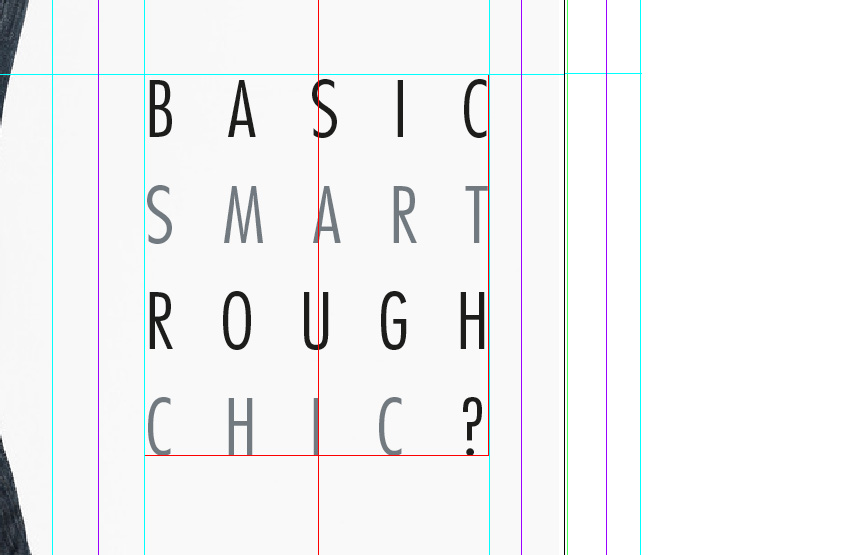
Select the Type Tool (T) and create a new text frame, 37.5 mm in Width and 115.5 mm in Height. Align the left edge of this new text frame with the left edge of the sub-title text frame, and rest the bottom edge against the bottom horizontal guide.
You can start to feed in the text of your article into this text frame. If you don’t have any text yet, you can go to Type > Fill with Placeholder Text. Set the Font to Adobe Garamond Pro, Size 11 pt.
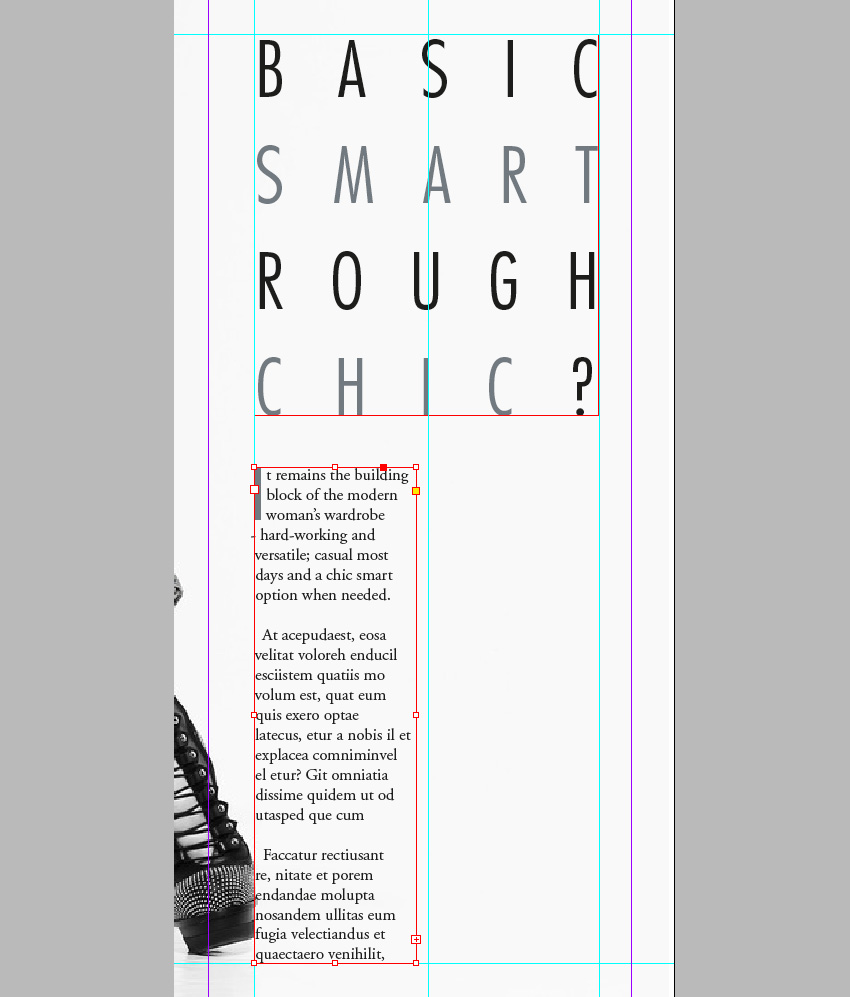
You can also pull out the first letter of the article in a Drop Cap, using the options available in the Character Formatting Controls panel. Set the Drop Cap Number of Lines to 3, and adjust the Font of the first character to Futura Std Medium Condensed and the Color to C=56 M=41 Y=37 K=20.

Step 7
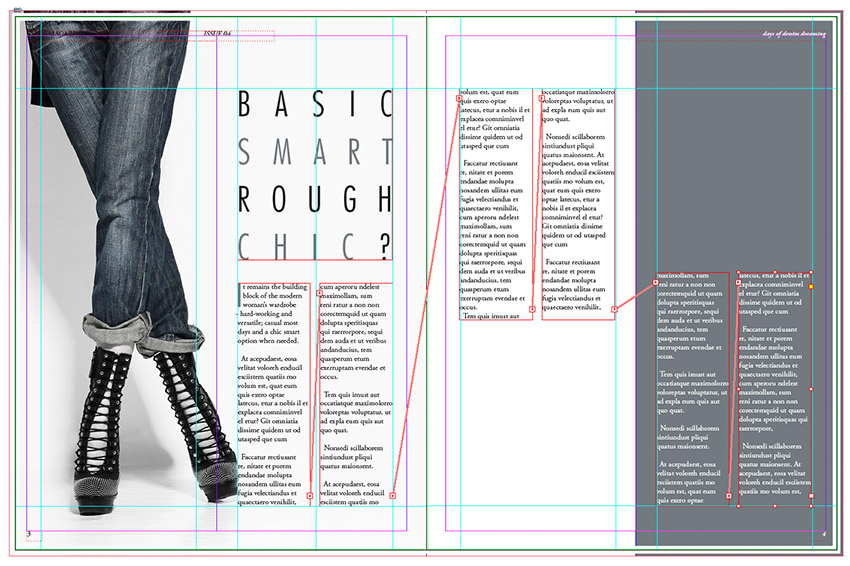
Create another text frame at the same dimensions as the tall text frame you just created. Position to the right of the first frame, resting against the guide on the far right, as shown.
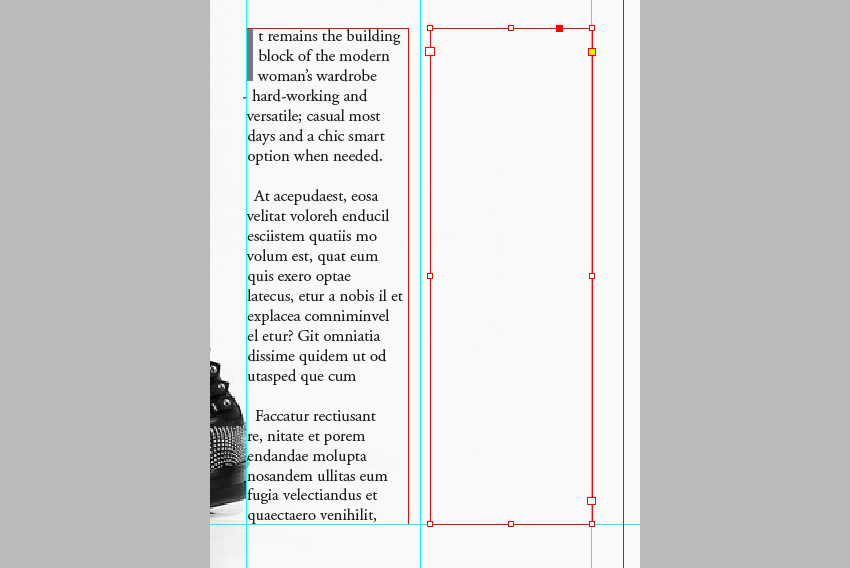
Click on the white box at the bottom right corner of the first frame, before clicking in the second frame, allowing the text to flow into it.
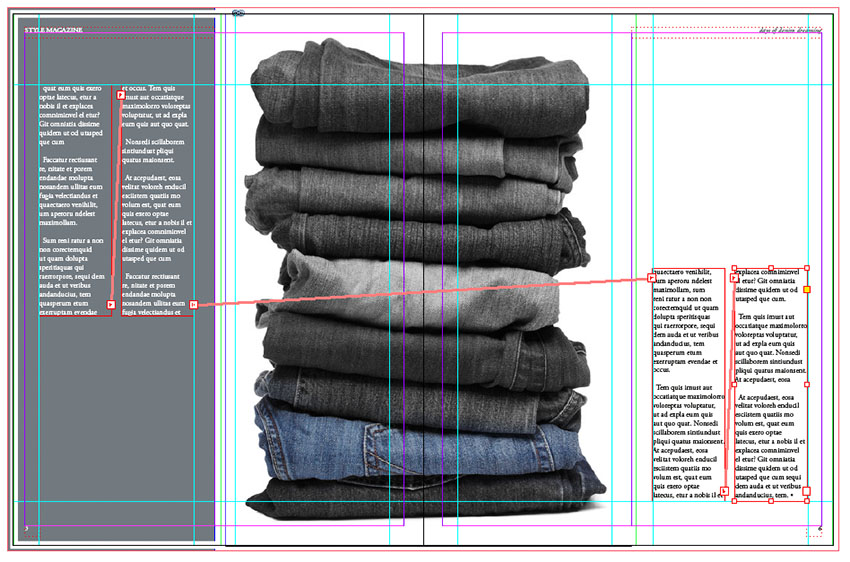
Continue to create new text frames at the same dimensions, positioning them in pairs on the opposite page of the spread, using the guides to help you. Repeat the process above, threading the text into the frames as you go. Adjust the color of some of the text to [Paper] if you need to contrast it against the dark background.
Continue onto the next spread, Pages 5–6, positioning the text frames around the image of the stacked jeans as shown.