Step 4
To ensure that the text on your Master pages will be brought to the front of your design, you can sit the content of the Masters on the same layer as the main text of your layouts.
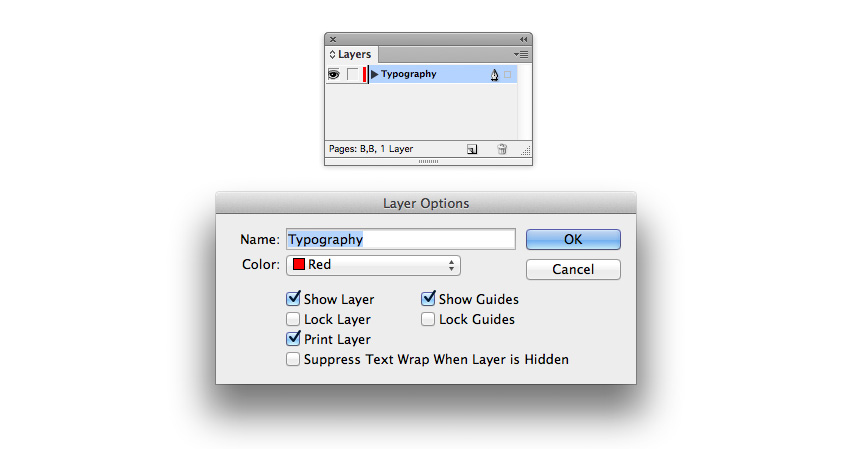
Open the Layers panel (Window > Layers) and double-click the default Layer 1name. Rename the layer as Typography and click OK.
3. Introduce Borders on Your Layouts
To give your magazine that extra professional look, you should introduce borders around the pages. This helps to frame your content, making it look really elegant.
Step 1
Remaining in the Layers panel, first Lock the Typography layer. Then click the New Layer icon at the bottom of the panel. Rename the layer as Border.
Grab the Border layer and move it to sit below the Typography layer.

Step 2
Remaining on the Border layer, bring up the first spread, Pages 1–2, of your document on screen.
Select the Rectangle Tool (M) and drag to create a frame that extends across the whole of Page 1, resting the edges on the trim edge of the document.
Set the Fill Color to [None] and Stroke to [Black], and increase the Weight of the Stroke to 4 mm.
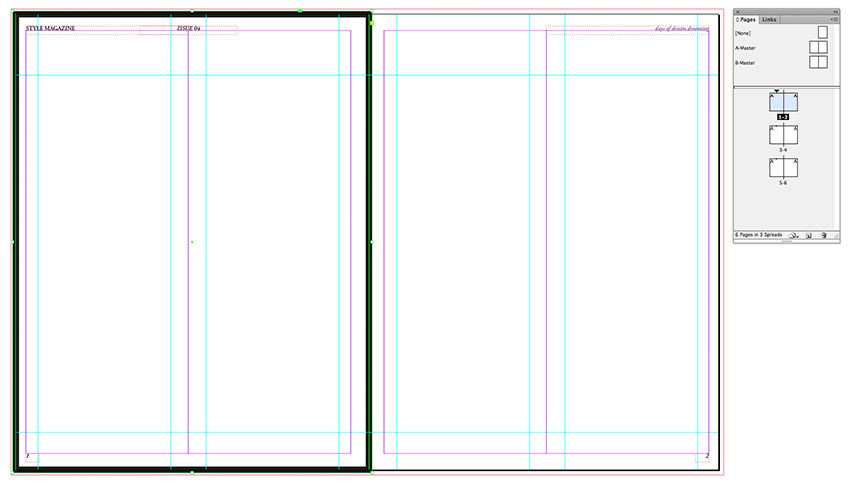
Select the frame and Edit > Copy and Edit > Paste. Position the pasted frame in a mirrored position on Page 2.
Step 3
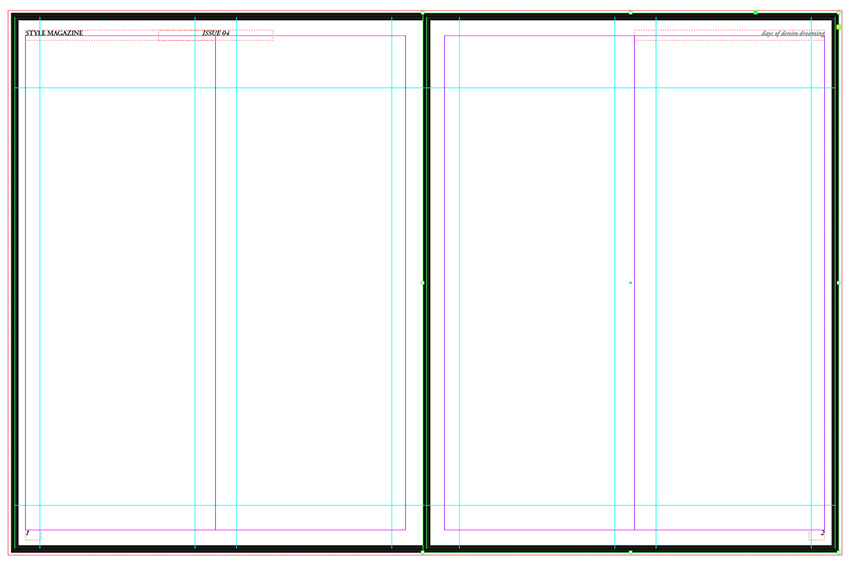
Drag your mouse across the whole of the spread to select both of the black frames and Edit > Copy.
Navigate down to Pages 3–4, and Edit > Paste in Place. Alter the Stroke Color to [Paper].
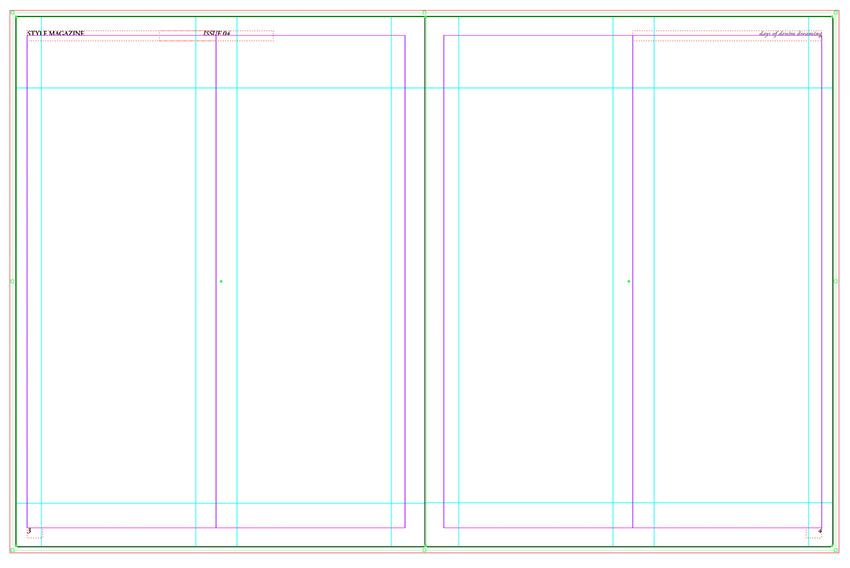
Repeat again for Pages 5–6, setting the Stroke Color to [Paper].