4. Get Playful with Color and Images
Now we can get started with the fun stuff!
Step 1
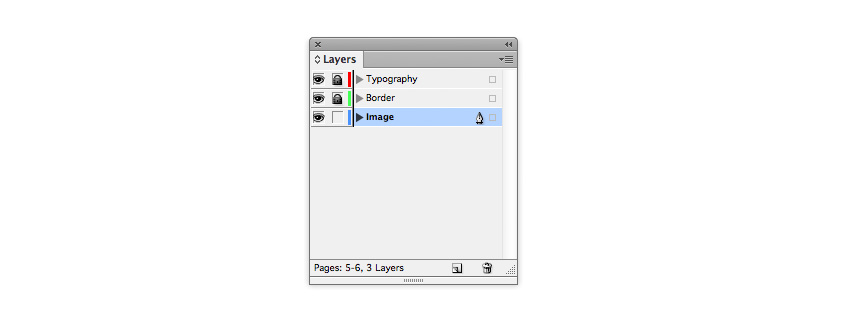
Return to the Layers panel and Lock the Border layer. Create a new layer, renaming it Image.
Grab the new layer and move it to sit below the Border layer.
Step 2
You want to select an image that will look strong and dramatic when placed across an entire page. For this fashion feature, I’ve chosen an image of a stylish woman wearing jeans.
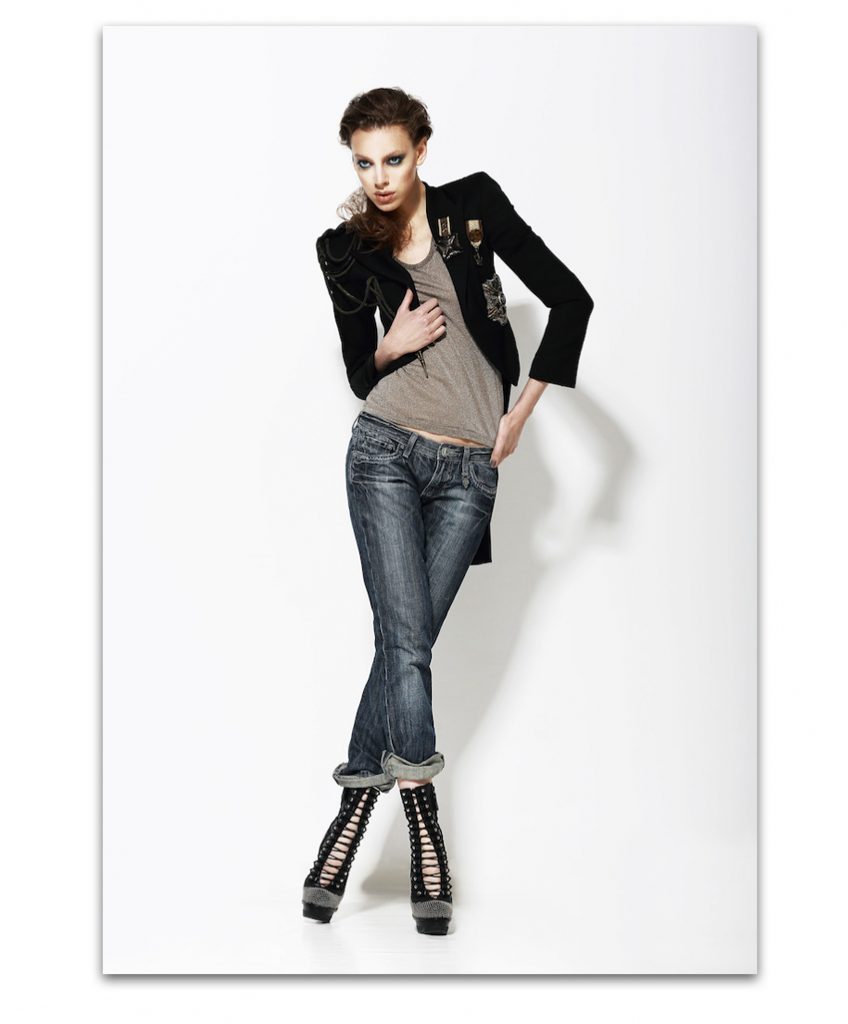
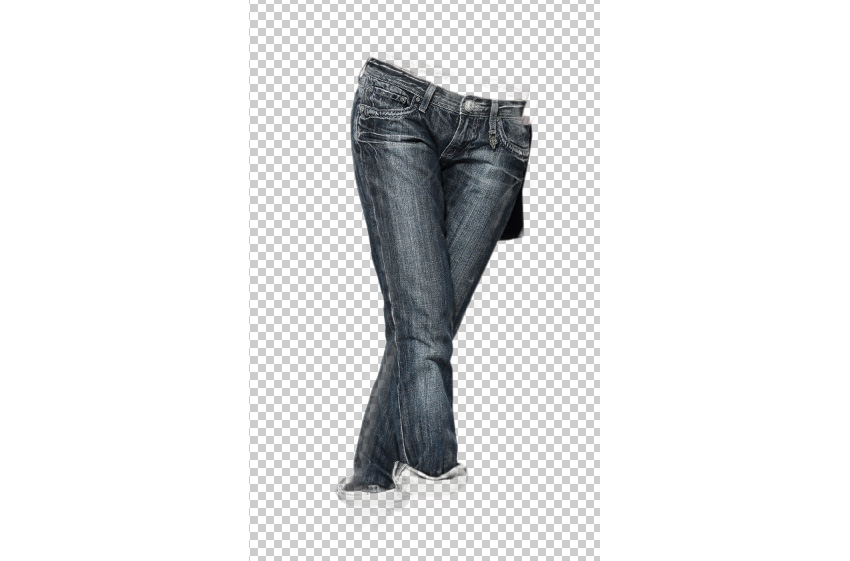
The original image is in full color. But for added edge, I post-edited the photo in Adobe Photoshop. To imitate the look of the image here, where only the jeans are pulled out in color, use the Lasso Tool (L) to select the area of the jeans only. Copy and Paste the selection, so it stands apart on a separate layer.
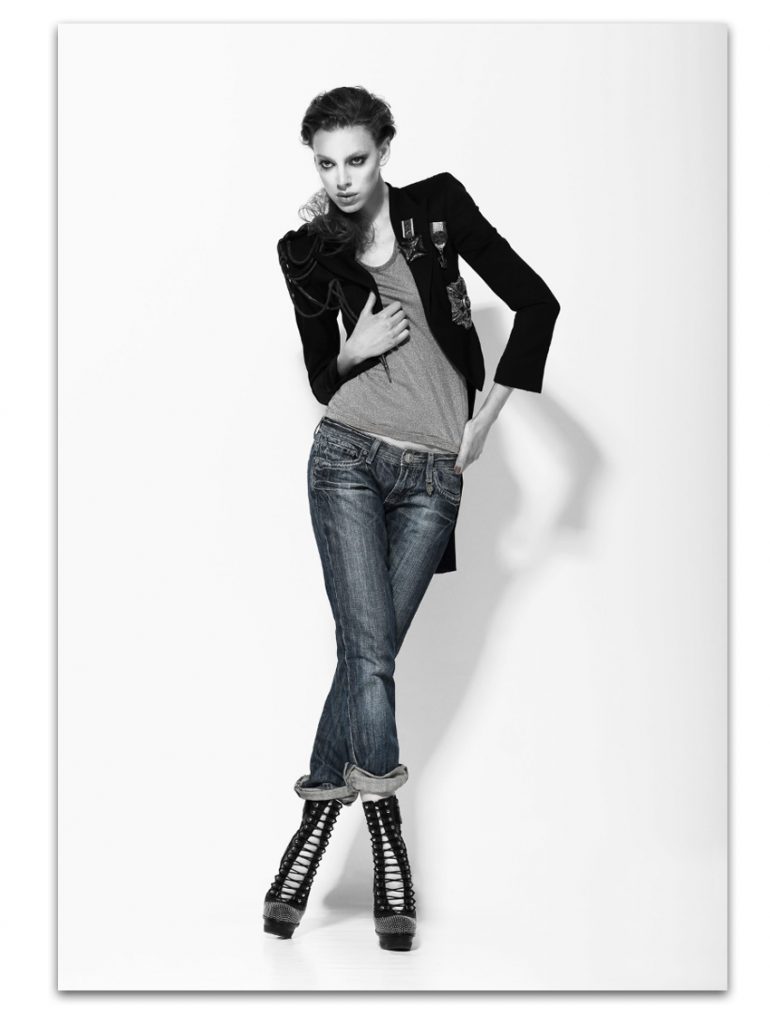
Apply a Channel Mixer Adjustment Layer in Monochrome to the original photo only, keeping the jeans pulled out in color.

Step 3
Return to InDesign and bring up Page 2 of the document on screen.
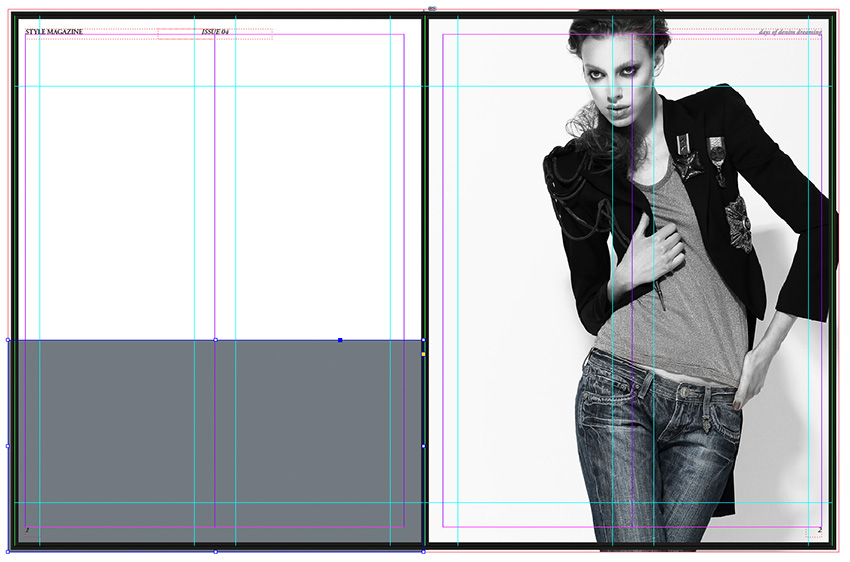
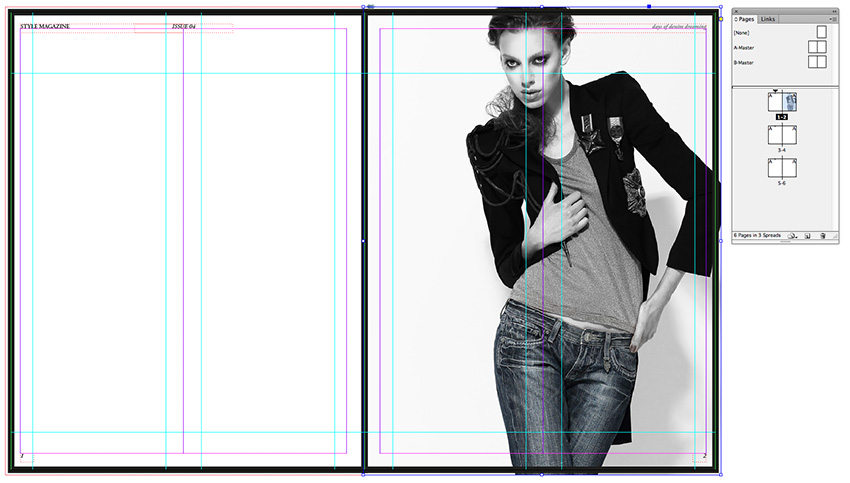
Select the Rectangle Frame Tool (F) and drag to create a frame that extends across the whole of the page.
Go to File > Place and select your chosen image. Click Open. Arrange the image in the frame until you are happy with the scale.
Step 4
Select the Rectangle Tool (M) and drag to create a frame 216 mm in Width and 110 mm in Height. Place this at the bottom of Page 1 in the position shown.