Step 10
Before you go to export your layouts for print, just take a quick detour back to the second spread of your document. You might notice that the right shoe in the photo is edging into the left-hand column of text, which isn’t ideal.
To quickly sort this out, select the Ellipse Tool (L) from the Tools panel and drag to create a small irregular ellipse that sits just over the bottom part of the shoe.
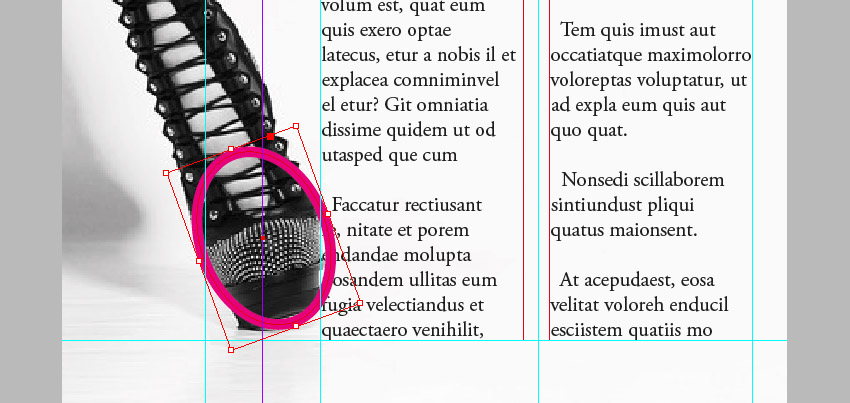
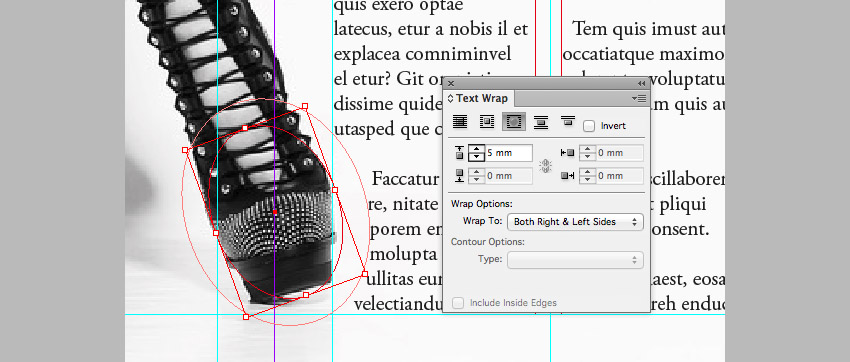
Adjust the Stroke Color to [None]. Go to Window > Text Wrap and set the wrap to Wrap Around Object Shape, at an Offset of 5 mm.
6. Export Your Magazine for Print
Your layouts are finished—super work! They look fantastic.
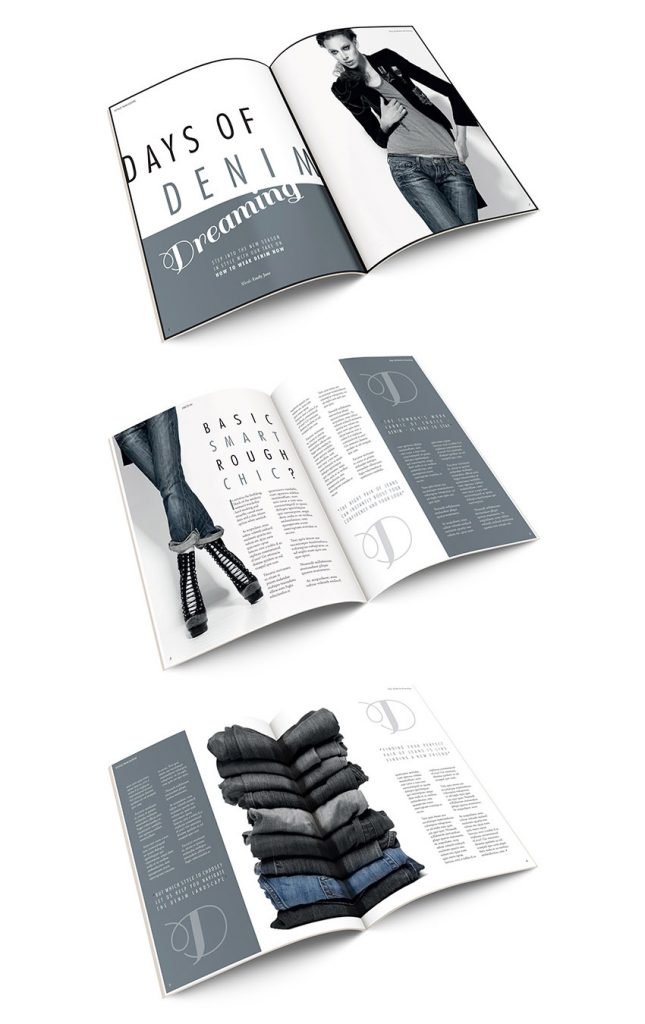
When you’re ready to send your designs off to print, simply follow the steps below.
Step 1
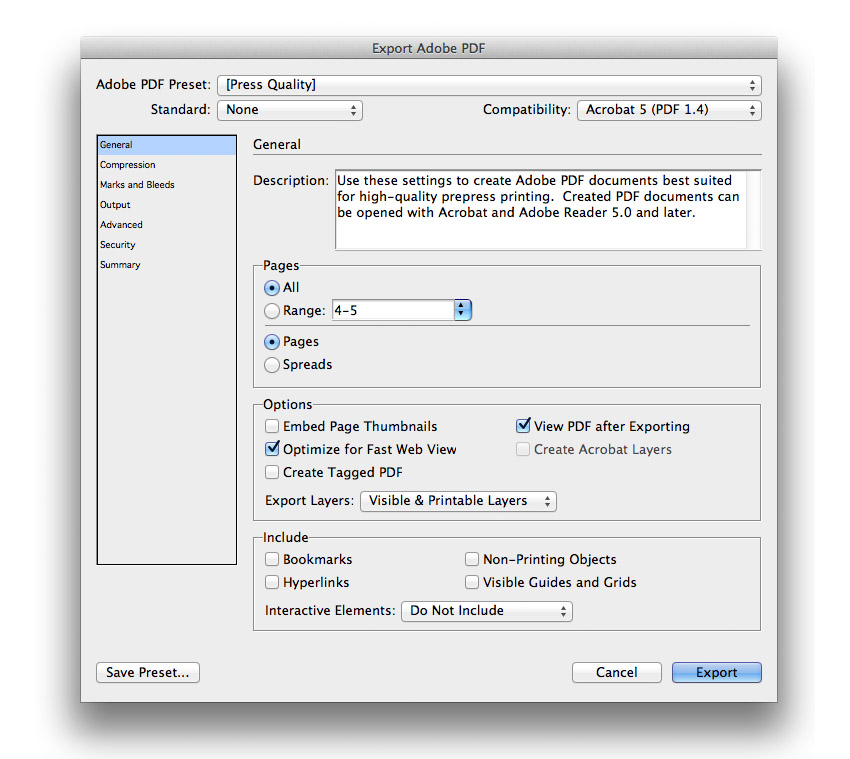
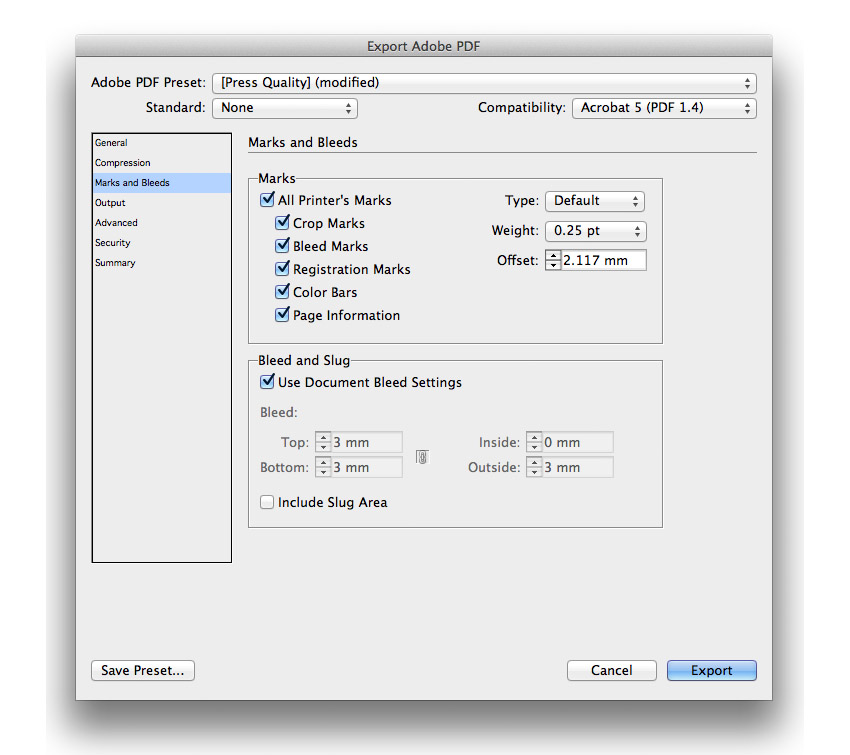
Go to File > Export… to open the Export window. Select Adobe PDF (Print) from the Format drop-down menu. Name the file and click Save.
In the Export Adobe PDF window select Press Quality from the Adobe PDF Preset drop-down menu.
Keep Pages checked, not Spreads, unless otherwise specified by your printer.
Step 2
Under the Marks and Bleeds section, click to select All Printer’s Marks under the Marks menu and click to select Use Document Bleed Settings under the Bleed and Slug menu. Click Export.
Well done!You now have your magazine layouts ready to be sent to the printers.
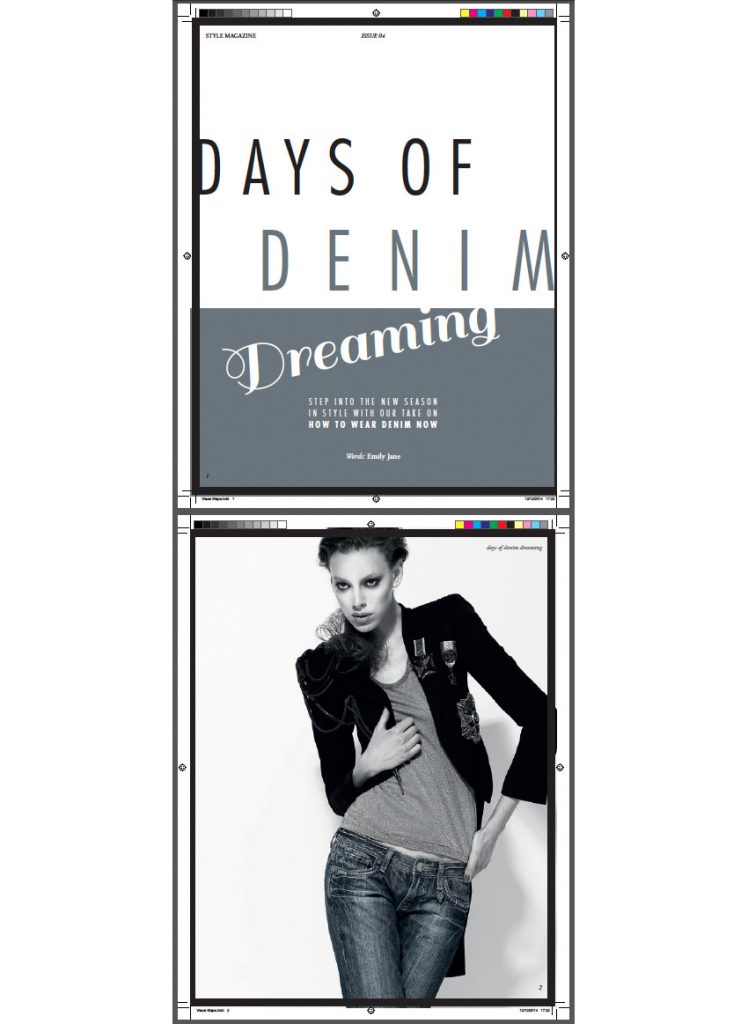
In this tutorial, we have learned how to design professional-standard layouts for a fashion magazine feature. The lessons we’ve covered here, such as setting up suitable Master pages, creating a simple grid, and experimenting with stylish typography, would also apply really well to any other kind of magazine you’re designing. Great work!