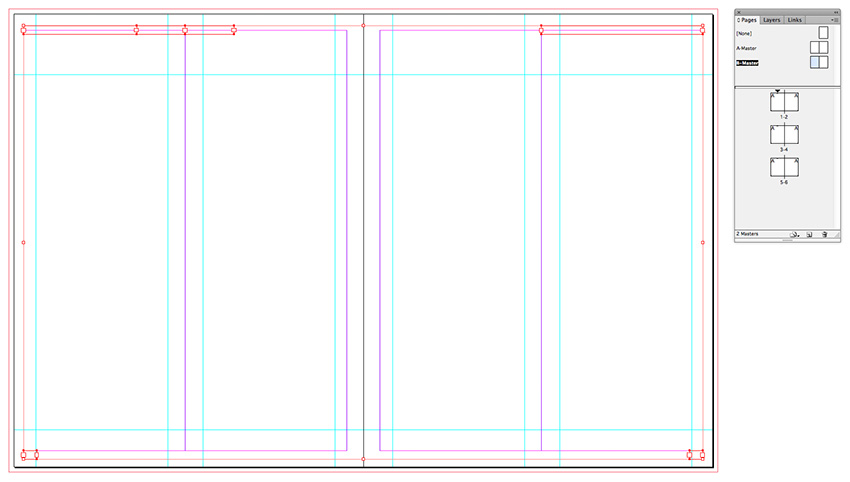
2. Customize the Master(s)
You should place any content you will want to show up on every page of your document on a Master page. So things like running headers and page numbers should be placed here, to make creating the rest of your layouts fuss-free.
Step 1
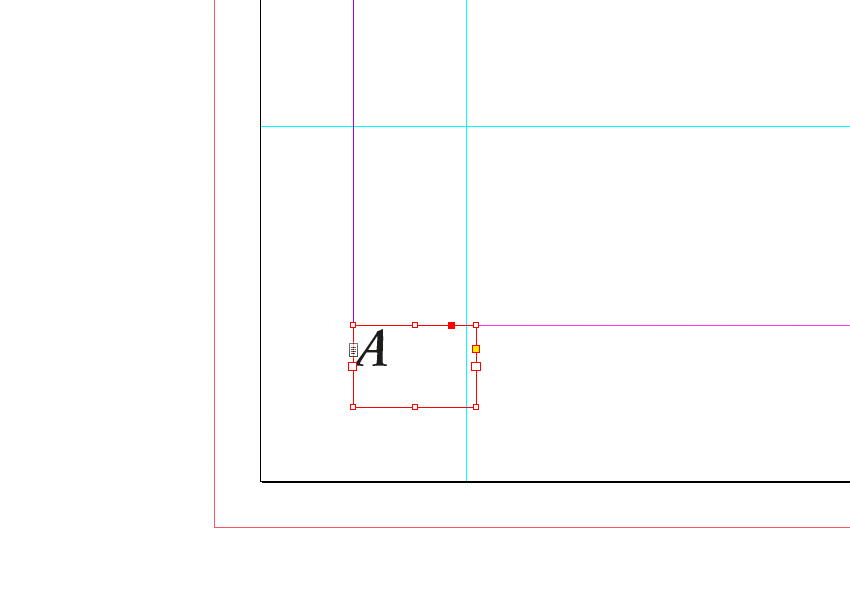
Select the Zoom Tool (Z) from the Tools panel and click and drag over the bottom left-hand corner of the left page of the Master spread.
Using the Type Tool (T) create a small text frame, positioning it just below the bottom margin. Place your cursor in the text frame and go to Type > Insert Special Character > Markers > Current Page Number.
Highlight the ‘A’ character and adjust the Font, from the Character Formatting Controls panel running along the top of the screen, to Adobe Garamond Pro, Semibold Italic, and Size to 10 pt.
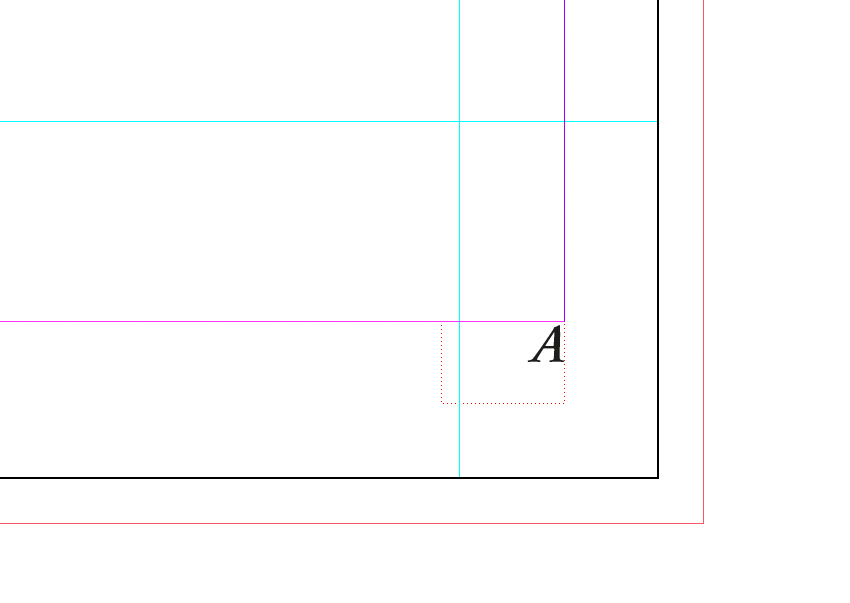
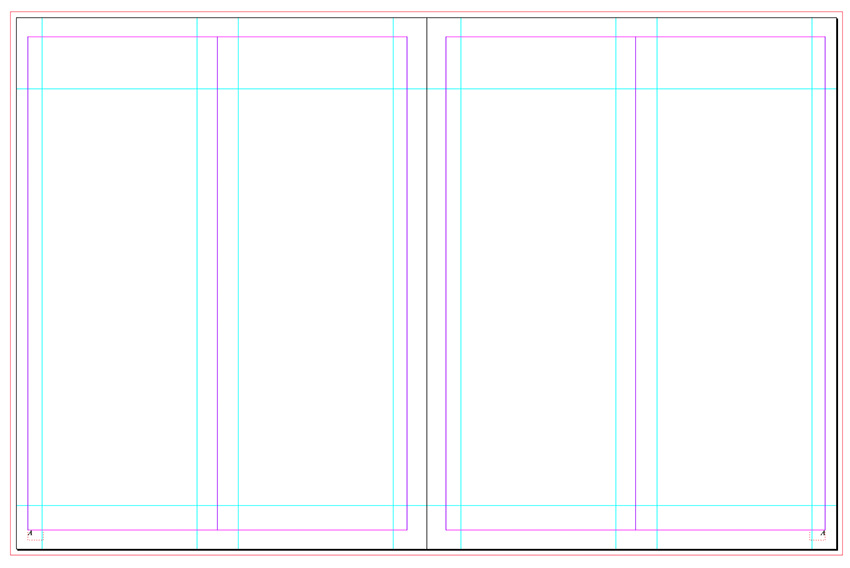
Select the text frame using the Selection Tool (V, Escape) and Edit > Copy, Edit > Paste. Manoeuvre the pasted frame to the bottom-right corner of the right page of the Master and adjust the alignment of the text to Align Right.
Step 2
You can also add running headers to the Master spread.
Use the Type Tool (T) to create two text frames, one at the top left-hand corner of the left page for the ‘Name of Magazine’. Set the Font as before to Adobe Garamond Pro, Size 10 pt. Set the weight to Semibold.
Position the other text frame centrally at the top of the left page, typing in the ‘Issue No.’, and setting the Font to Adobe Garamond Pro, Semibold Italic, and Size 10 pt. Set the text to Align Center.
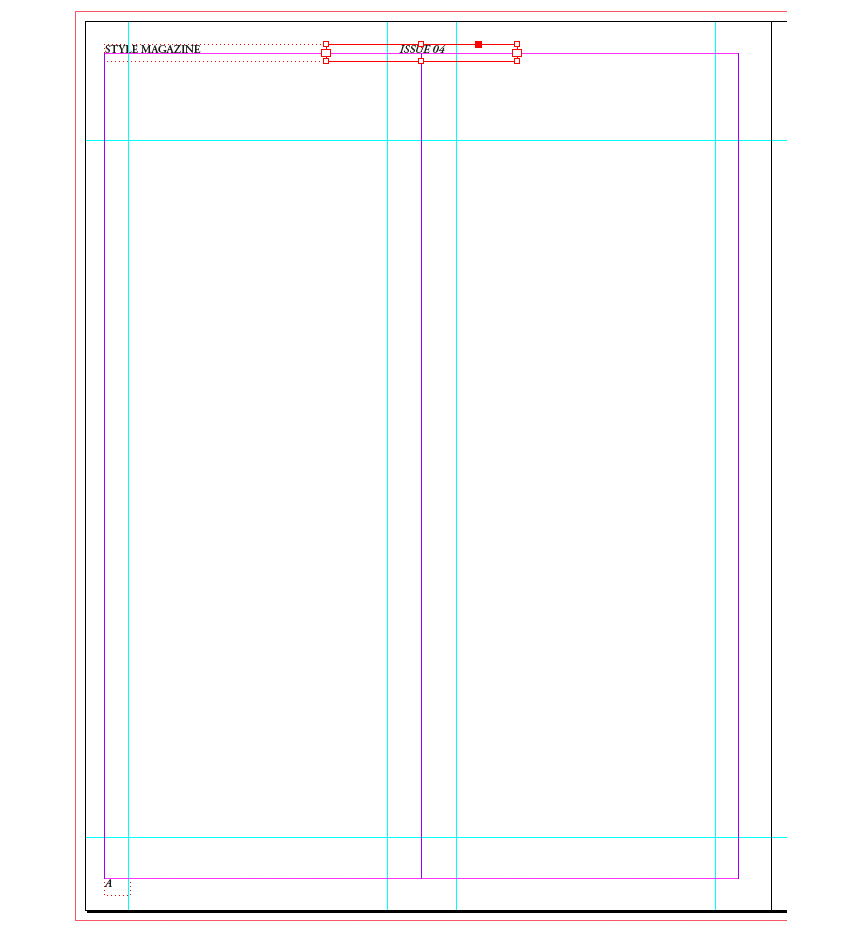
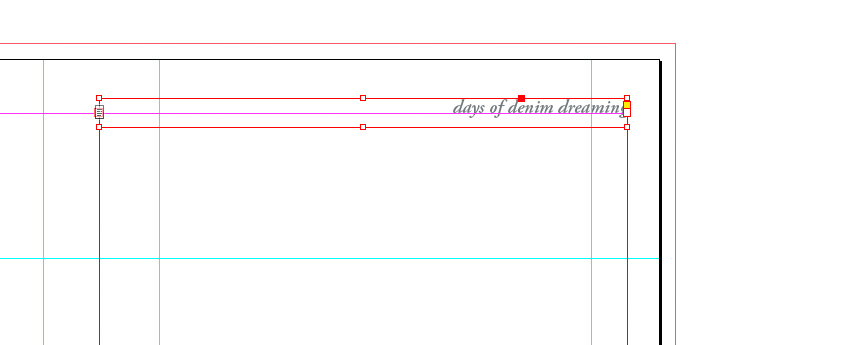
Create a third text frame, positioning it at the top-right corner of the right-hand page of the Master. This is the perfect place to put in the name of your article. Here, it’s ‘days of denim dreaming’. Set the Font to Adobe Garamond Pro, Semibold Italic, and Size 10 pt. Set the text to Align Right.
We’re going to build up the magazine layout using just three colours: [Black], [Paper] and a new grey-blue swatch. Open the Swatches panel (Window > Color > Swatches) and click on the New Swatch icon. Add a new CMYK Swatch, C=56 M=41 Y=37 K=20.
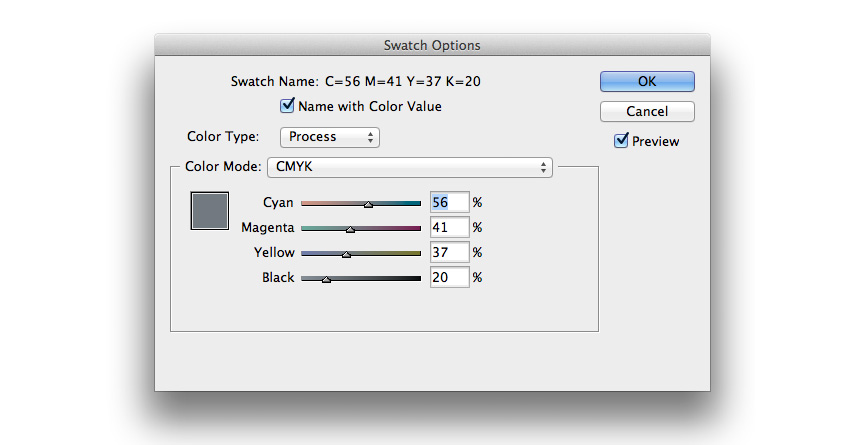
Set the article title in this new swatch.
Step 3
Some of the pages in your magazine layout might include dark images or background colors, and dark text will disappear against these. Let’s solve that right now.
Return to the Pages panel and hold Shift and select both pages of the A-Master. Drag them down to the Create New Page icon at the bottom of the panel. A second Master spread, a B-Master, will be created.
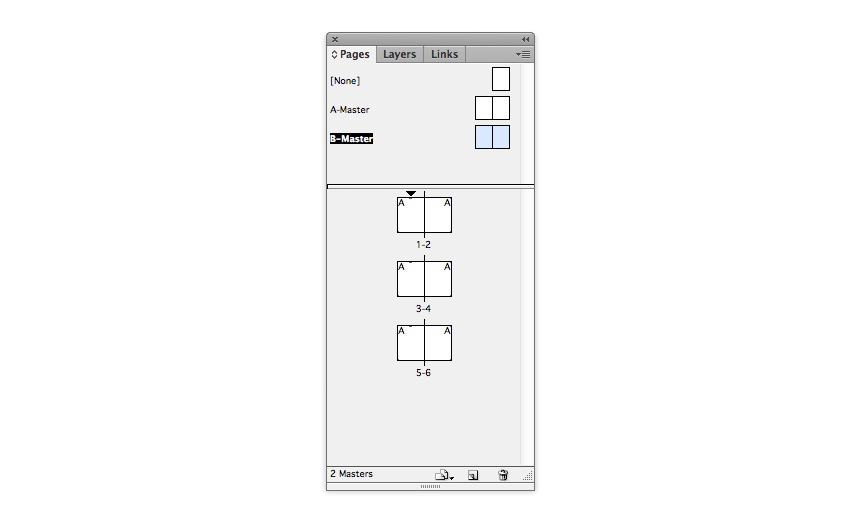
Ensure the B-Master is brought up on screen, then drag your mouse across the whole of the spread, selecting all the text frames. Adjust the Font Color of all the text on the spread to [Paper]. Delete the ‘Issue No.’ text frame.