Step 5
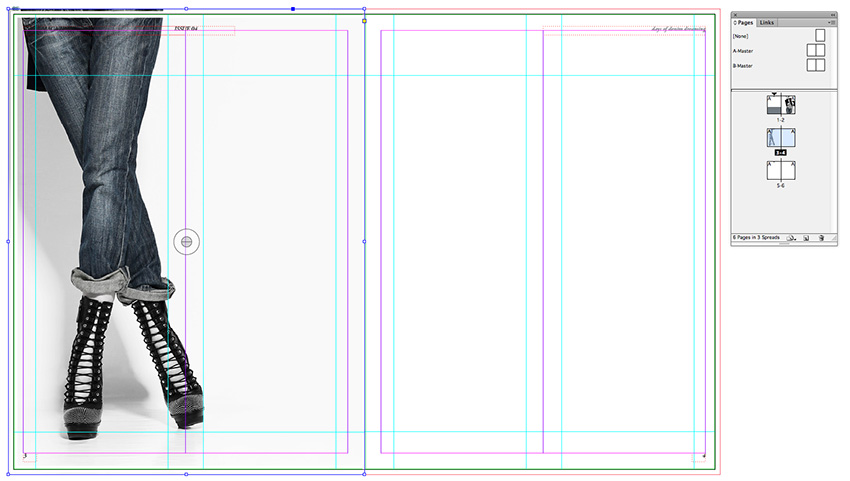
Navigate down to Page 3 of your document. As before, create an image frame the Width and Height of the page, extending to the Bleed, and File > Place. Select the same image as before.
Double-click inside the frame to select the image directly and Control-Click (Mac OS) or Right-Click (Windows) > Transform > Flip Horizontal. This time enlarge the scale of the image, and focus on the lower half of the photo, bringing the jeans and shoes into the frame. Leave a decent space to the right of the image to allow some space for text.
Step 6
Select the Rectangle Tool (M) and drag to create a frame that extends from the top to the bottom of Page 4. Rest the right edge on the far right bleed, and extend the Width until it meets at the center point of Page 4.
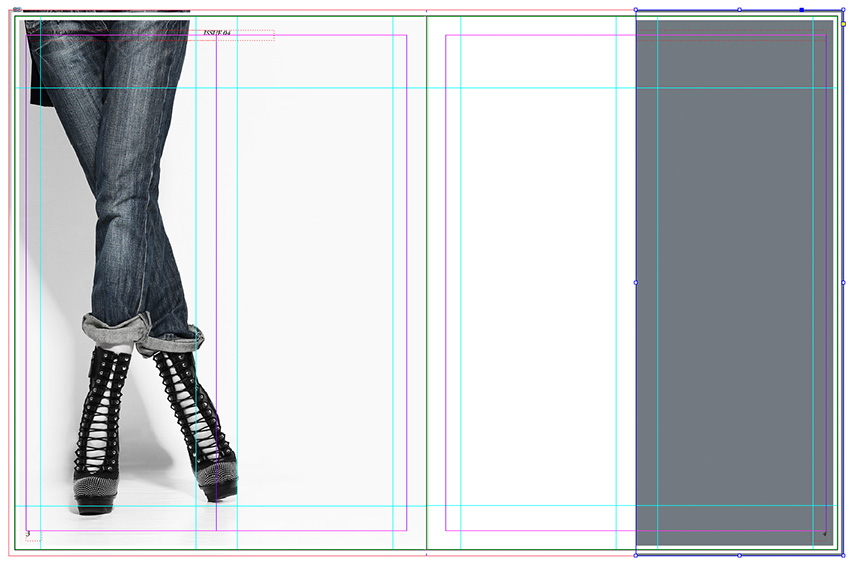
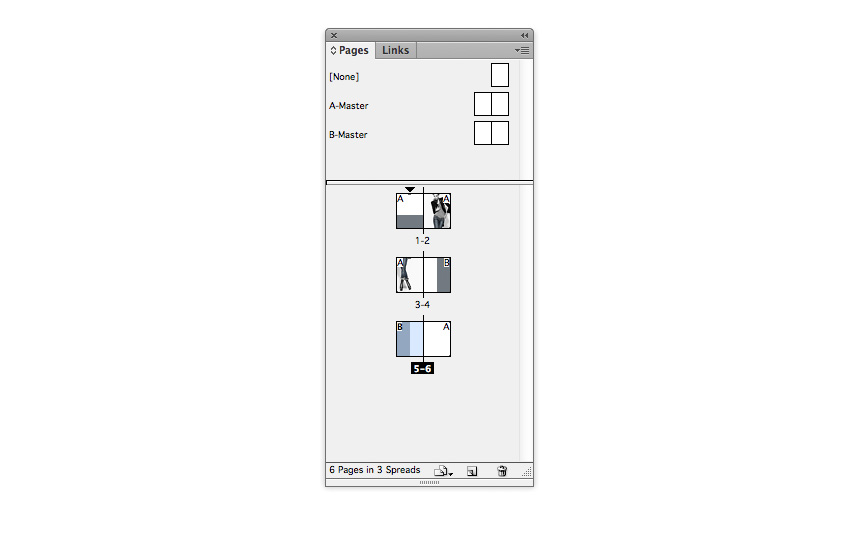
You’ll notice that the article title at the top right corner of Page 4 is now no longer visible and the page number doesn’t look very clear, now it’s set against a dark background. To solve this, simply go the Pages panel and drag the right-hand page icon of the B-Master, dropping it onto the Page 4 page icon in the panel.
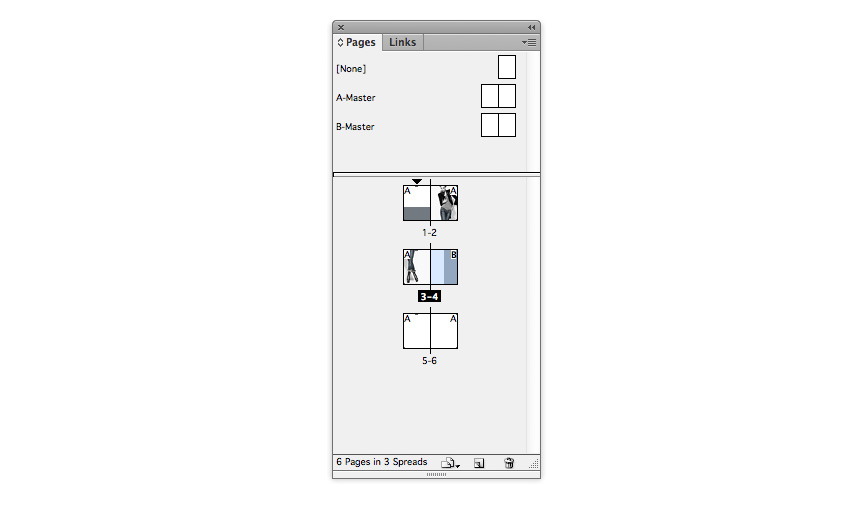
While you’re there, you can also apply the B-Master to Page 5 of the document.
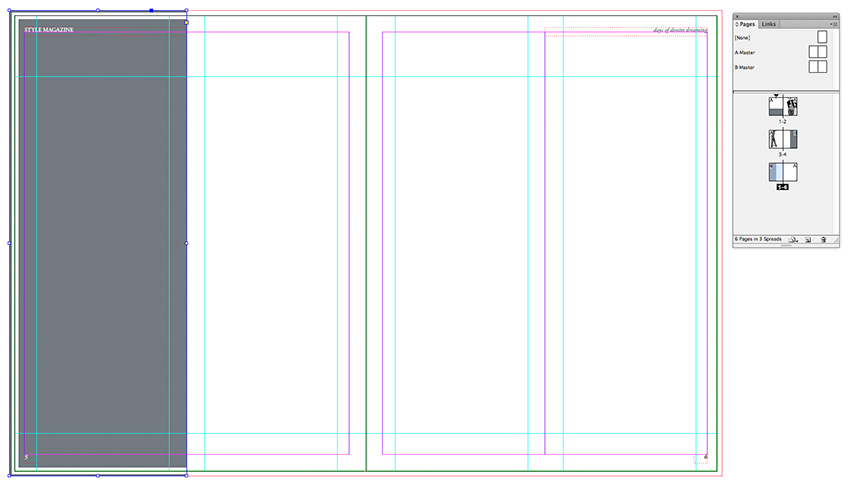
Step 7
Select the grey frame you’ve just created and Edit > Copy. Navigate further down to Page 5 of the document and Edit > Paste. Move the pasted frame to the left side of the page, as shown.