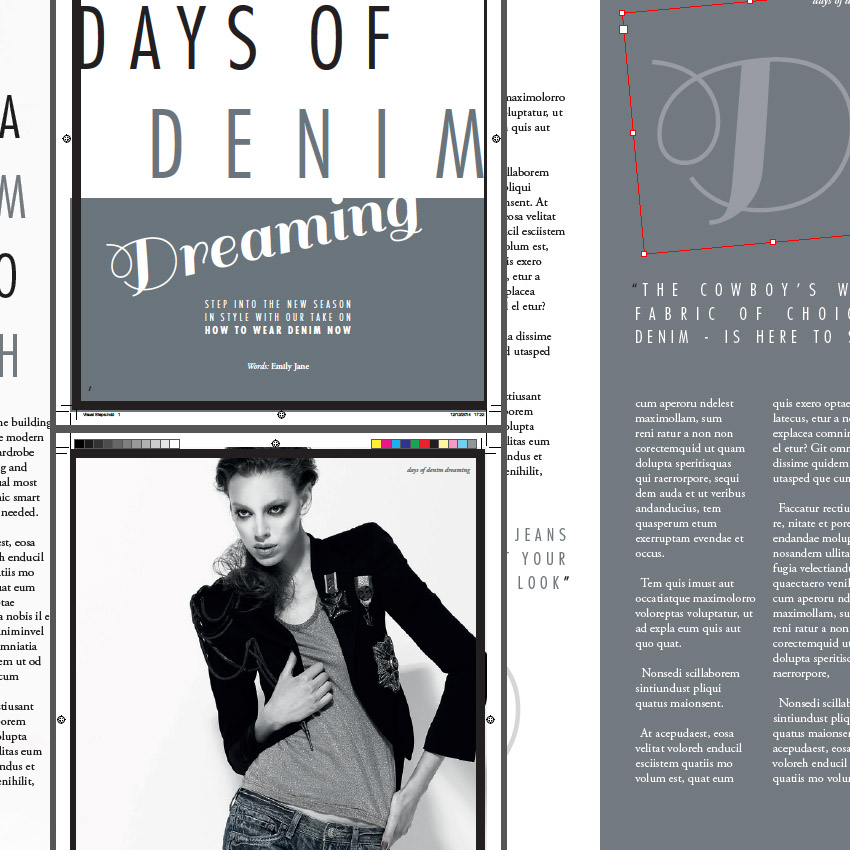
Open up the pages of any high-end magazine and you can find some really outstanding design work. The interior layouts of fashion titles can be particularly awe-inspiring. Designers are becoming more experimental with typography, irregular grids and unusual image choices to create magazine layouts that look as gorgeous as the covers.
In this tutorial you’ll learn how to design your own three-spread layout for a magazine feature using Adobe InDesign. We’ll look at how to prepare a grid, work with Masters to create visual uniformity across the pages, and how to select colors, images and typefaces to create a professional-standard design.
We’ll take you through the process gradually, step by step, so this tutorial is suitable for beginners to InDesign.
1. Create Your Magazine Document and Grid
Step 1
Open InDesign and select New Document from the Welcome window or go to File > New > Document.
In the New Document window, keep Intent as Print. Set the No. of Pages to 6. Keep Facing Pages checked.
From the Page Size drop-down menu select Custom… to open the Custom Page Size window. We’re going to be using the same dimensions as we did for this Magazine Cover tutorial, which uses a standard US magazine page size. This is 8 3/8 inches by 10 7/8 inches, though we’ll be working in millimeters throughout.
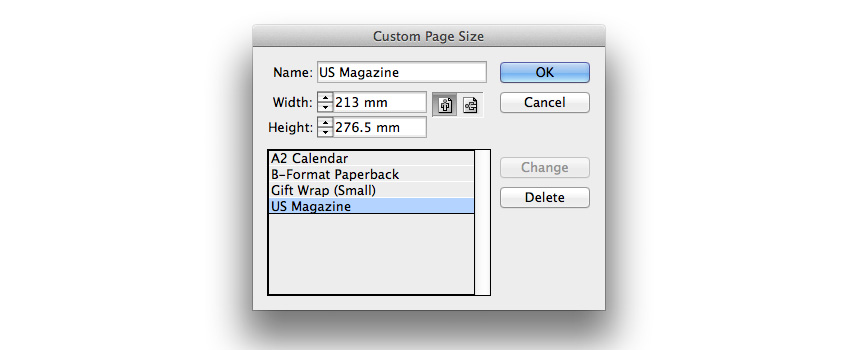
Type ‘US Magazine’ into the text box at the top of the window and set the Width to 213 mm and the Height to 276.5 mm (this equates to 8 3/8 in by 10 7/8 in). Click Add and then OK.
Step 2
Back in the New Document window, set the Top, Bottom and Inside Margins to 10 mm. Click the chain icon to the right of the margin values to break the chain. Type 6 mm into the Outside Margin value box. This is so that we allow a bit more space on the inside edge of the page, to accommodate for binding.
You should also include a Bleed of 3 mm on all sides except the Inside, where it won’t be needed. Set the Inside Bleed to 0 mm.
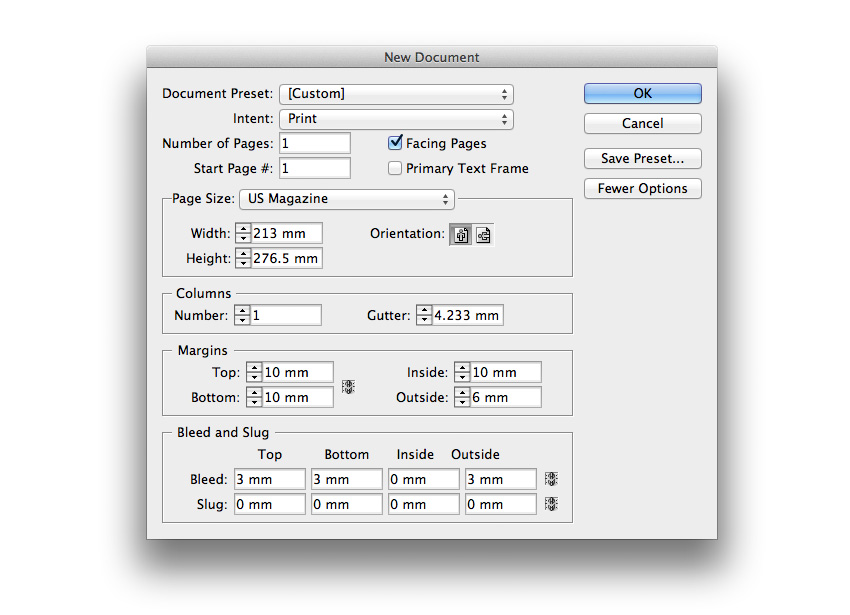
Click OK.