Step 8
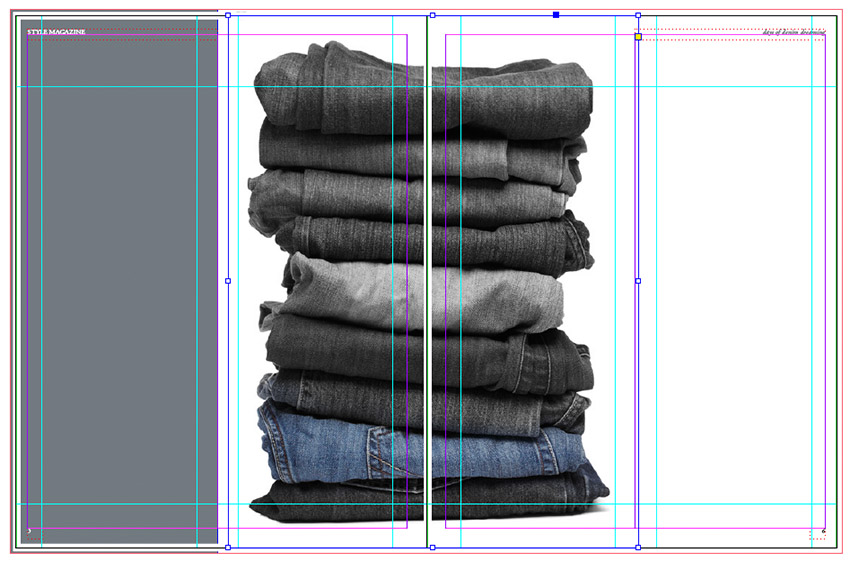
Use the Rectangle Frame Tool (F) to create a new large image frame. Position it centrally on the Pages 5–6 spread.
Go to File > Place and select a second image. Here, I’ve gone for an image of a stack of jeans.
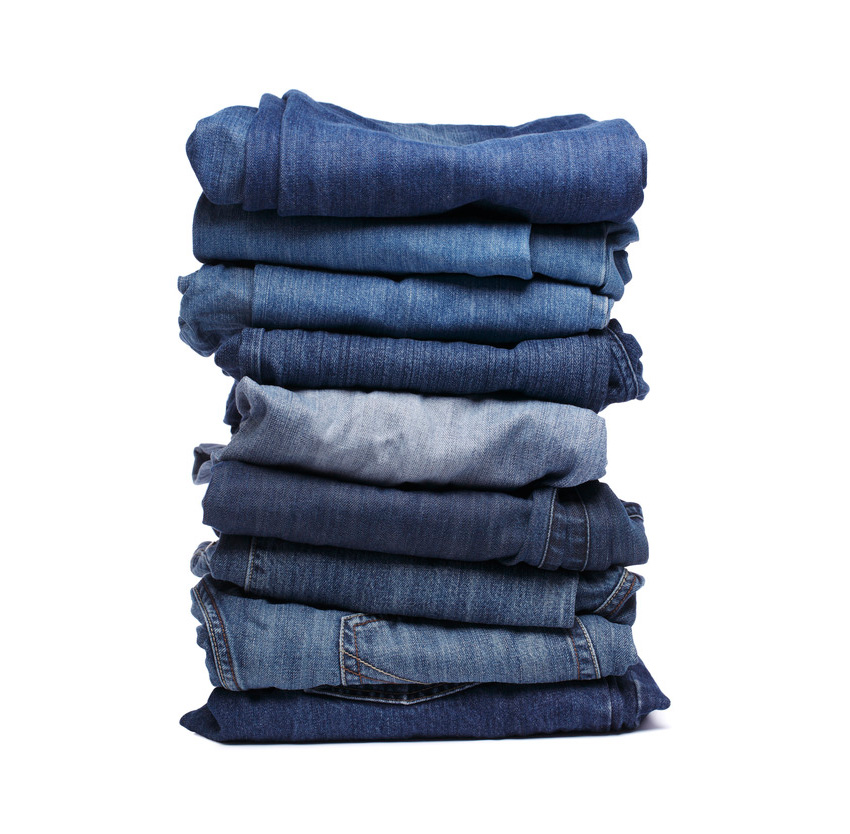
As I did with the first image earlier, I then used Photoshop to pull out one of the pairs of jeans in color, with the rest of the stack set in monochrome.
Step 9
The white border’s cutting through the center of the image, which doesn’t look great. So, return to the Layers panel and Unlock the Border layer. Pull back the inside edges of each border to the center of the page, so you still have a white border around the colored background on the left-hand page.
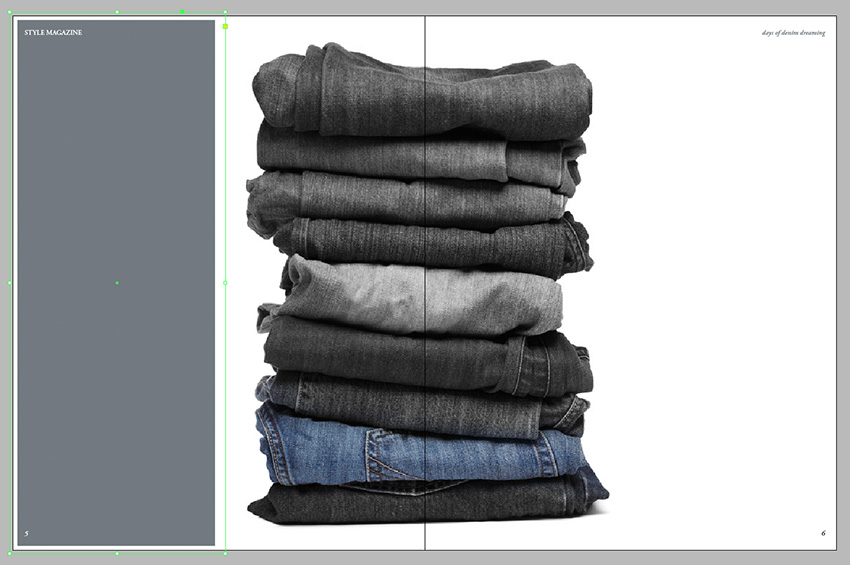
Great work! This is how your magazine feature looks at the moment:
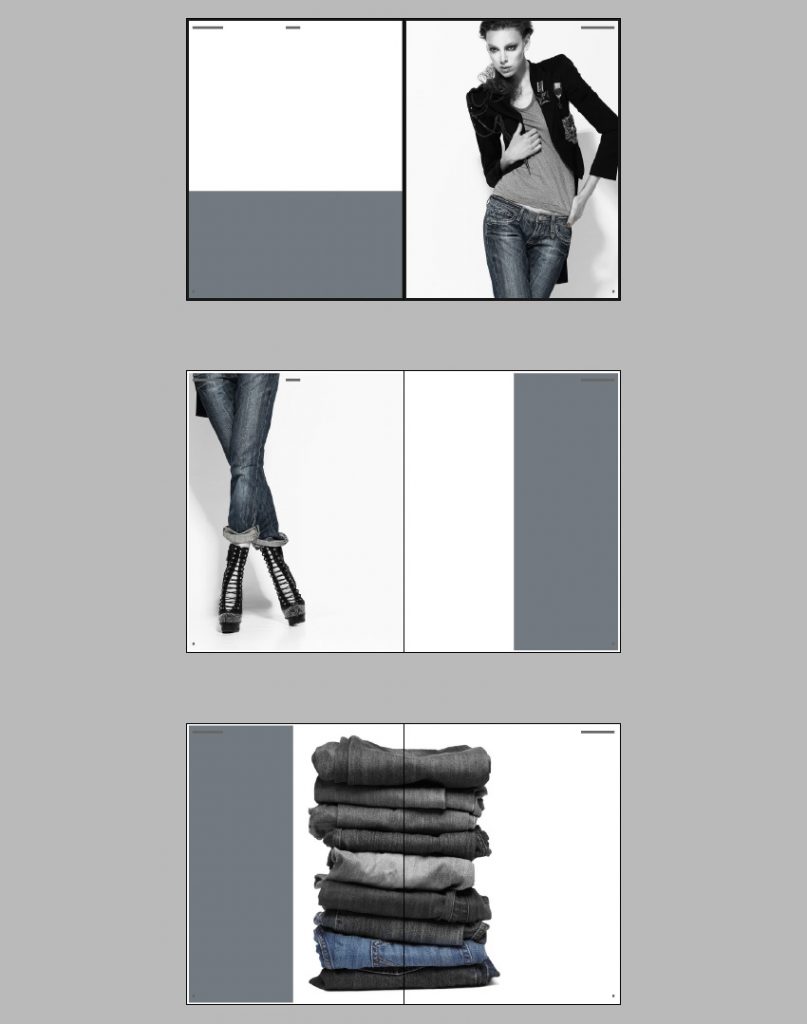
Now all we need to do is add some text!