8. How to Save the Poster as .PSD and for Web
Step 1
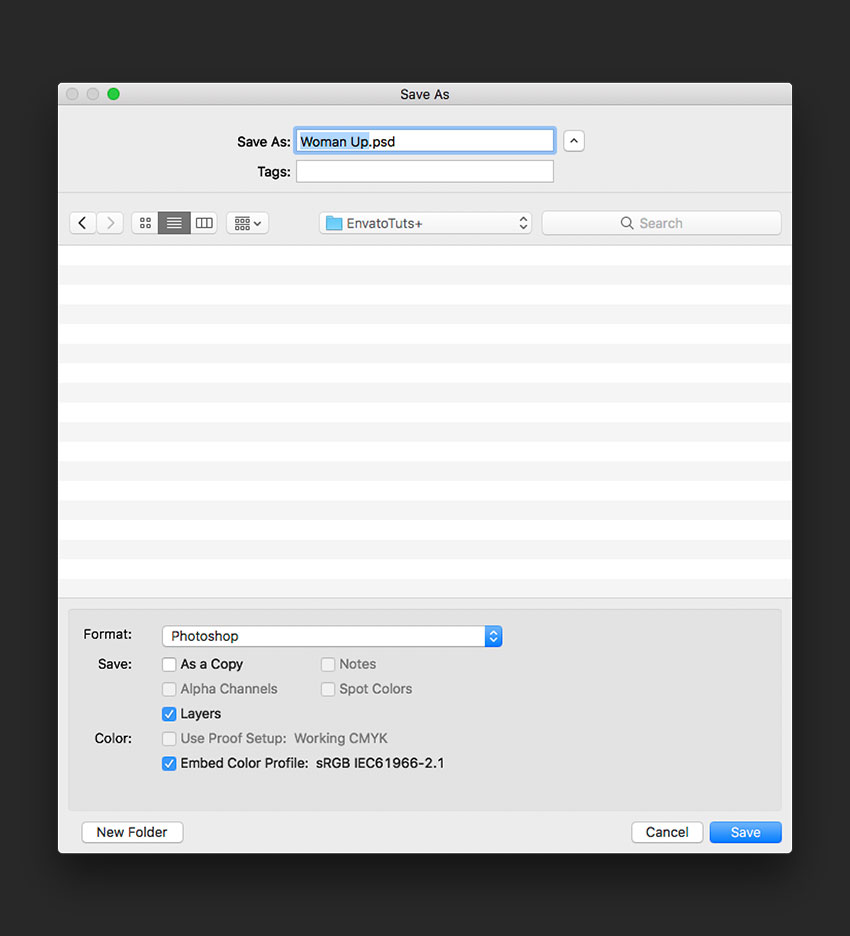
Click File > Save As to save the file as a .PSD to edit it later.
Step 2
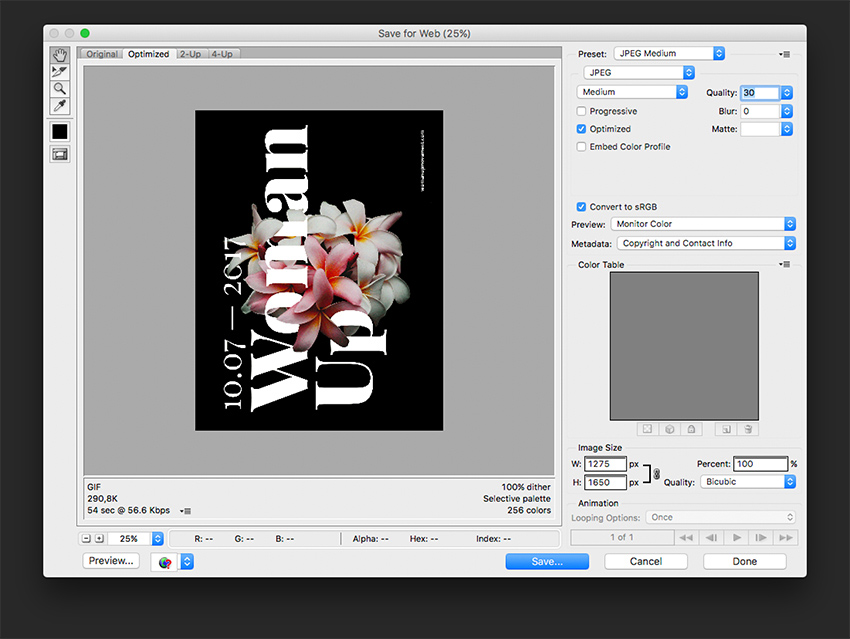
For a lower-resolution web jpeg and smaller file size, click File > Save for web (Shift-Option-Command-S). Here you can alter the quality of the image and the image size. Click on Save … and save the file.
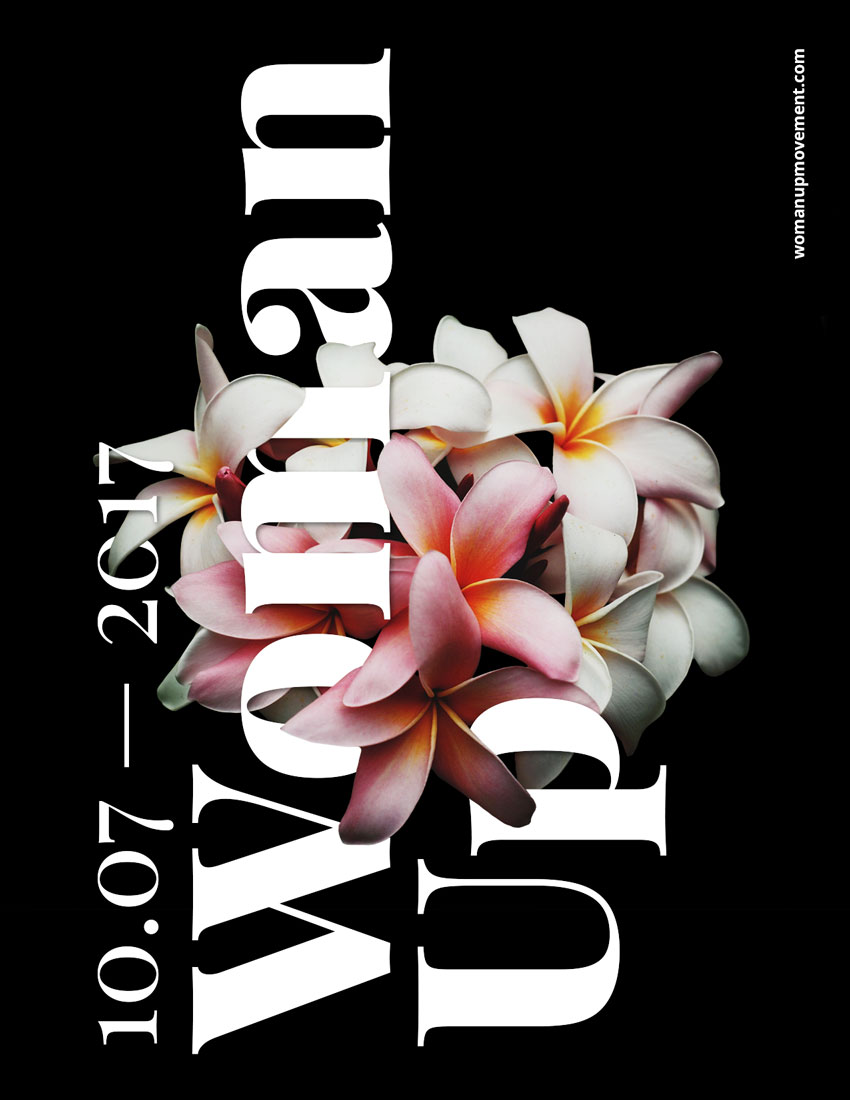
Congratulations on Finishing This Tutorial!
We have covered an interesting skill for putting together typography poster that interacts with an image. Today we’ve learned to:
- Use Layer Masks to hide and reveal parts of an image.
- Use Adjustment Layers to add Brightness/Contrast to an image.
- Format typography and use it in different directions to interact with the image.
- Use the image’s levels of focus to our advantage to create a poster with depth.
- Use Effects layers to add drop shadows to a text layer to create depth of field.