5. How to Add Mask Layers
Step 1
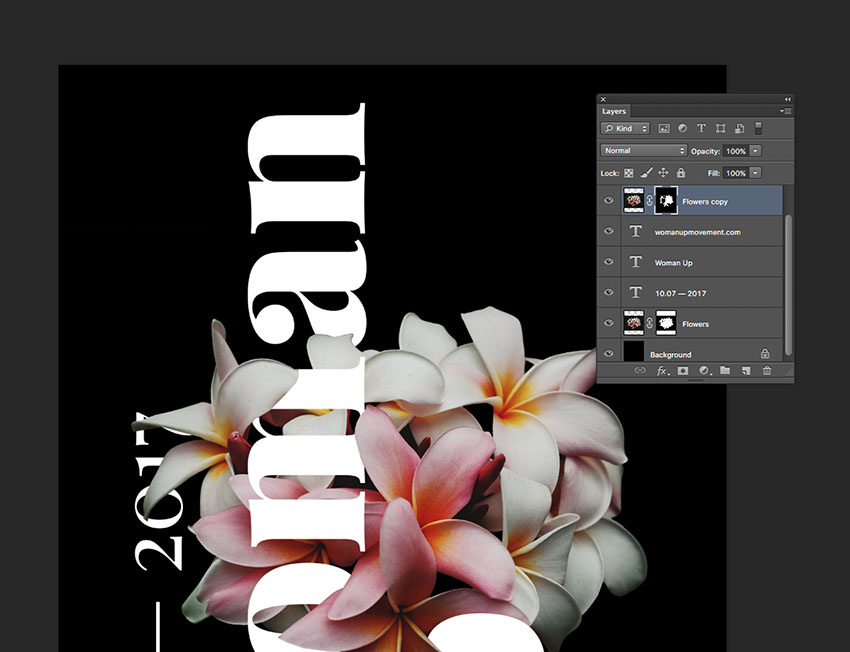
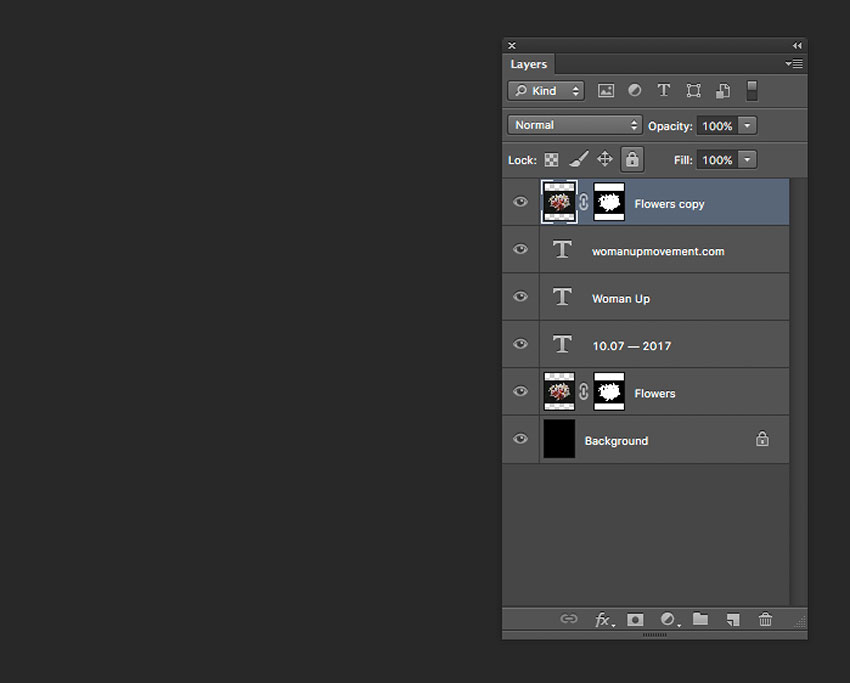
We want to create an illusion that the text is interwoven with the flowers. Let’s duplicate the flower layer by pressing Command-J and place it at the very top of our Layers panel.
Step 2
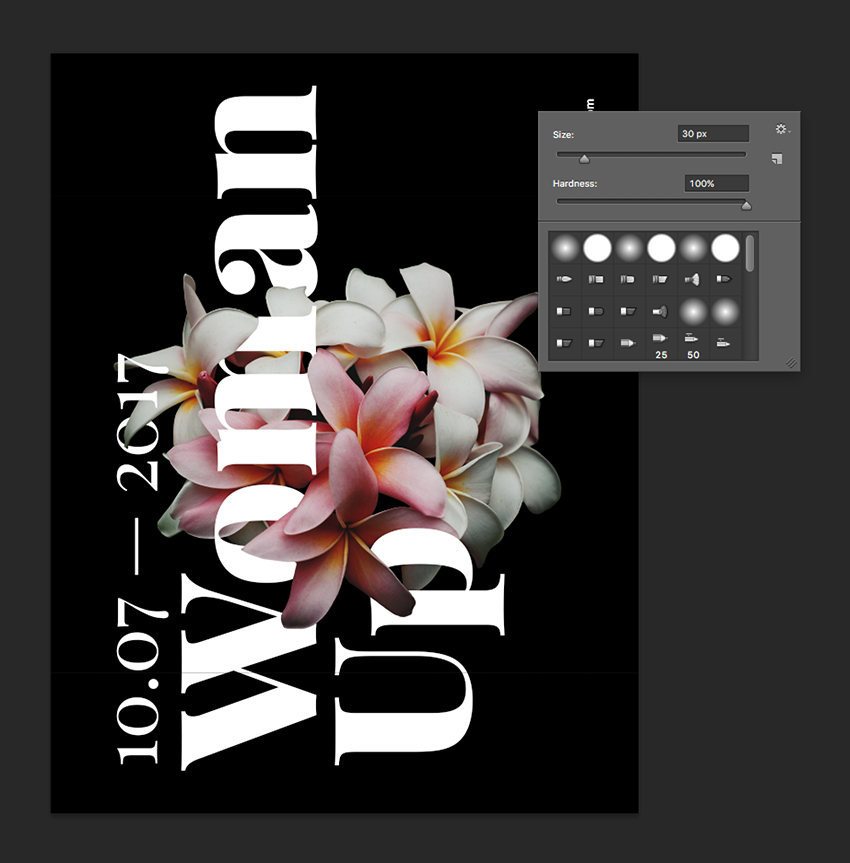
We want to work on the new flower layer and more specifically on the layer mask. Start by setting the Brush Tool (B) followed by Right-Click to a size of 30 px and Hardness of 100%.
You can interchange between black and white colours to hide or reveal parts of the image. Pressing X will interchange between these two colours, making it easier to work on the details.
We also want to pay attention to the petals that are in the foreground and background for these to make sense in terms of what is covering the text and what is behind the text. The final file and layers should be looking like the image below:
Step 3
Do the same with the date on the very left.