Step 3
While selecting the new layer on the Layers panel, click on the Vector Mask button to add a Layer Mask to Background copy.
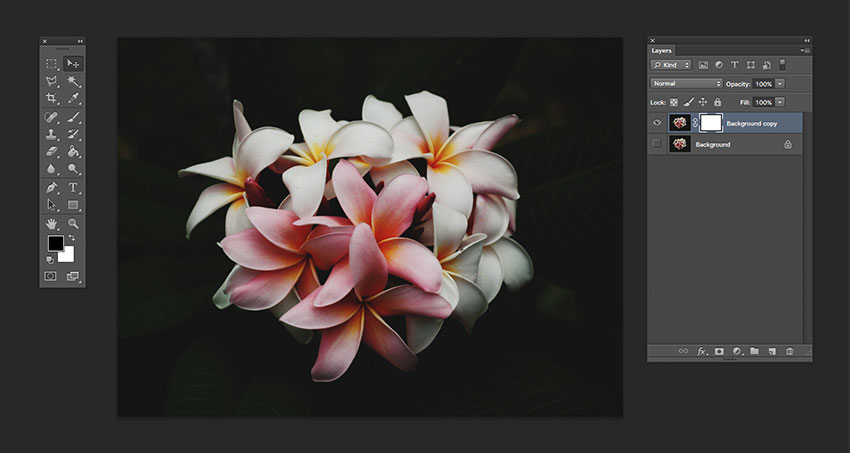
Step 4
While selecting the new Layer Mask, use the Brush Tool (B). Reset the foreground/background colours by pressing D and X to switch between them. Use black as the foreground colorand paint over the image to erase the background.
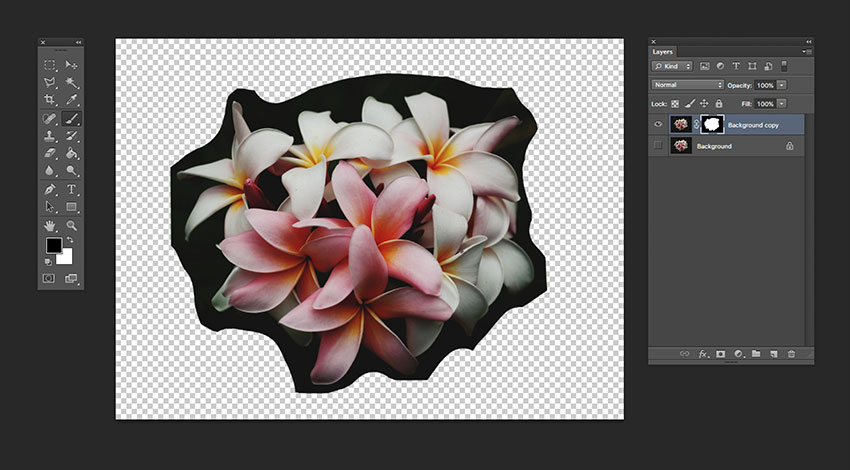
Step 5
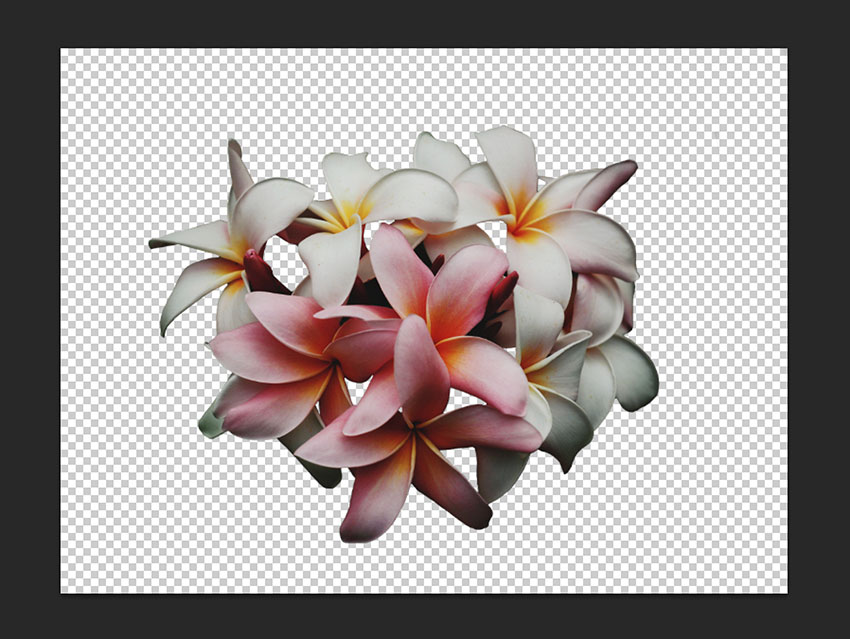
Once we have painted over with the Brush Tool, we can zoom in and work on the details. Tap the backslash key () to display a red overlay on the layer mask. This is useful to see if we are erasing the right parts on an image.

We should have something like this: