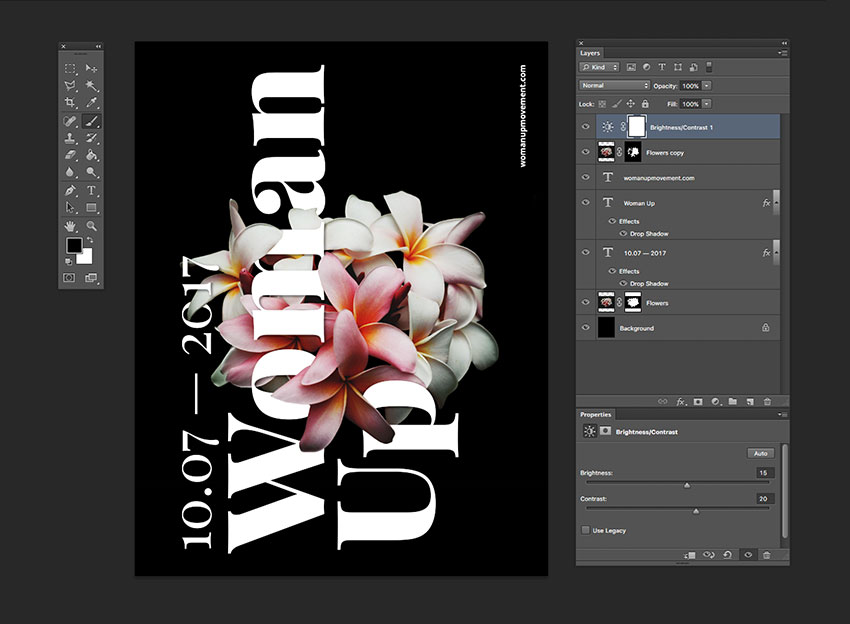
6. How to Add Effects to a Text Layer
Step 1
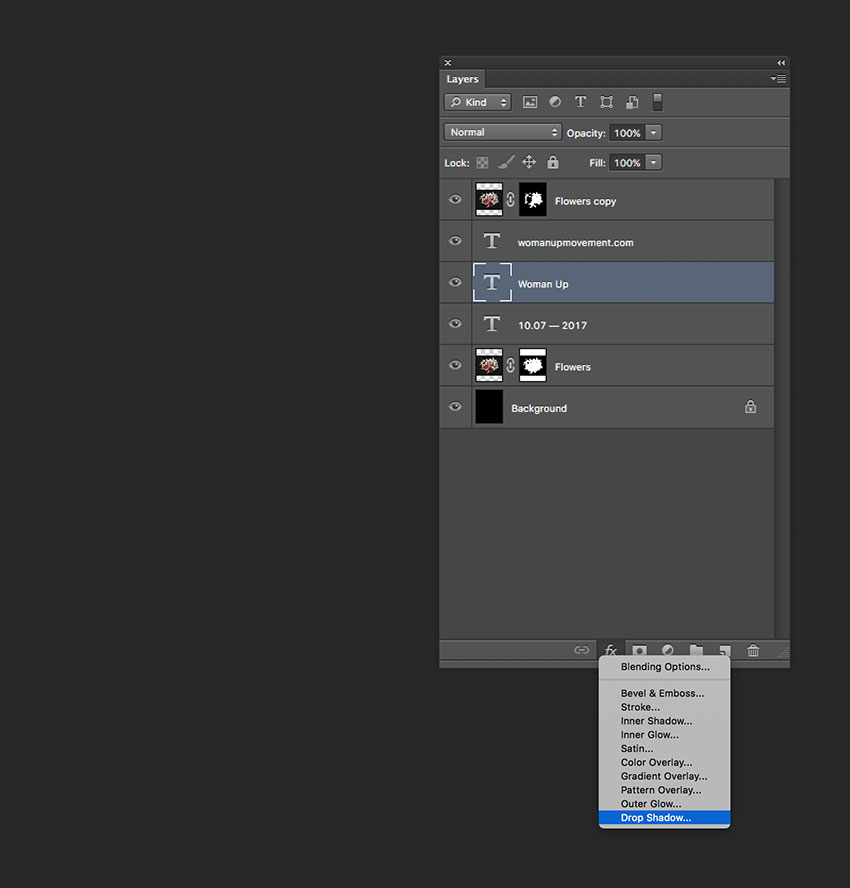
To create a depth of field, we will add a Drop Shadow layer style to the main text. Select the Woman Up text layer on the Layers panel. Click on Effects > Drop Shadow.
Step 2
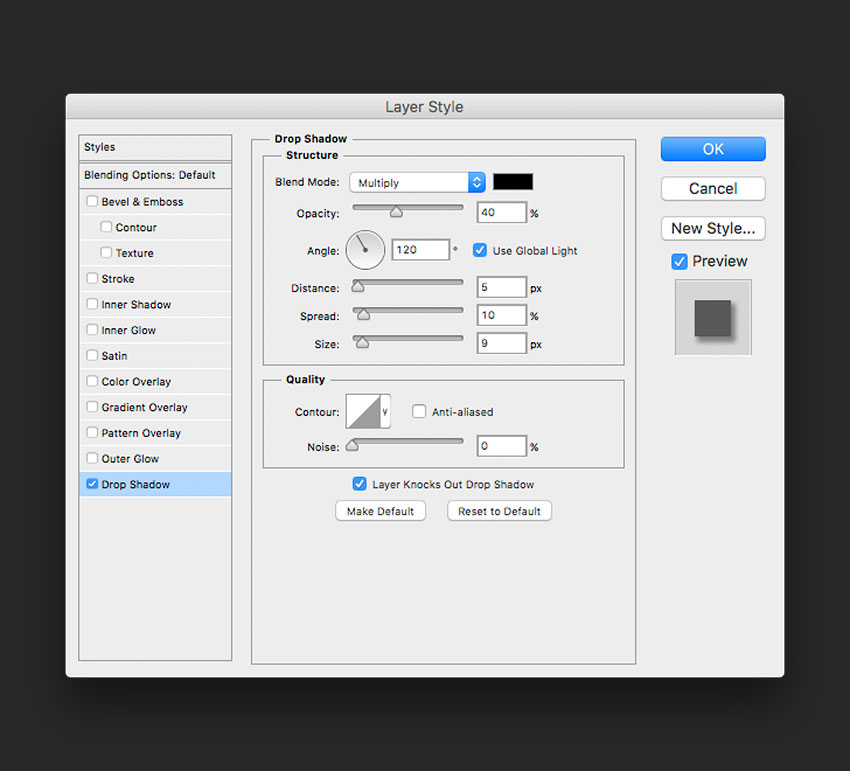
A Layer Style window will pop up, and you will notice that on our poster, the text will have a shadow. We want a softer look, so let’s change to the values in the image below and click OK.
Step 3
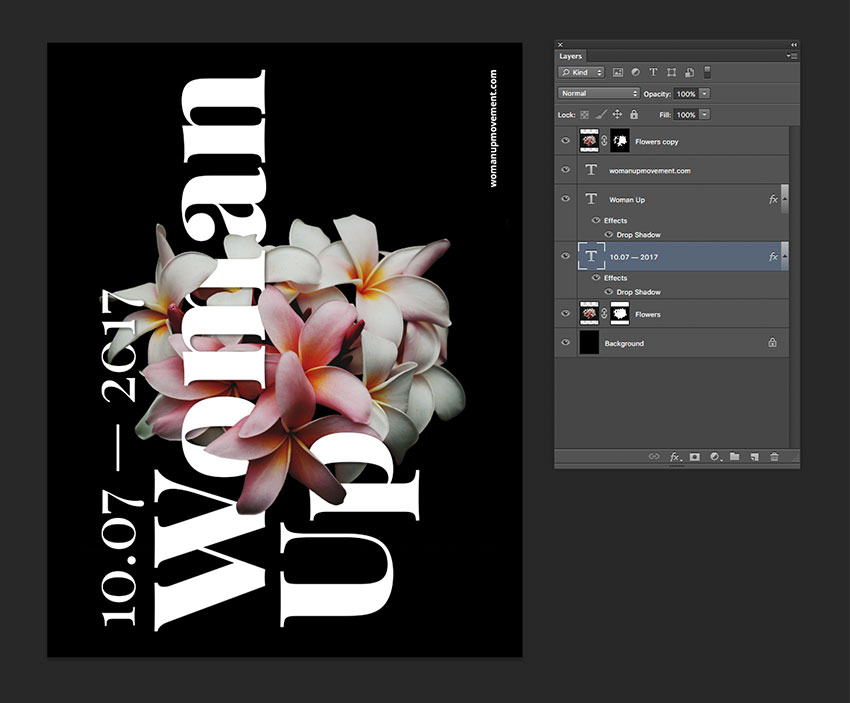
Our text layer now will have an “fx” symbol next to it. We want to copy the drop shadow effect onto the date text layer. Select the Woman Up text layer and Right click > Copy Layer Style. On the date text layer, Right click > Paste Layer Style. The layers and the image should be looking like the image below:
7. How to Add Adjustment Layers
Step 1
At the bottom of the Layers panel, click on Add Adjustment Layer > Brightness/Contrast.
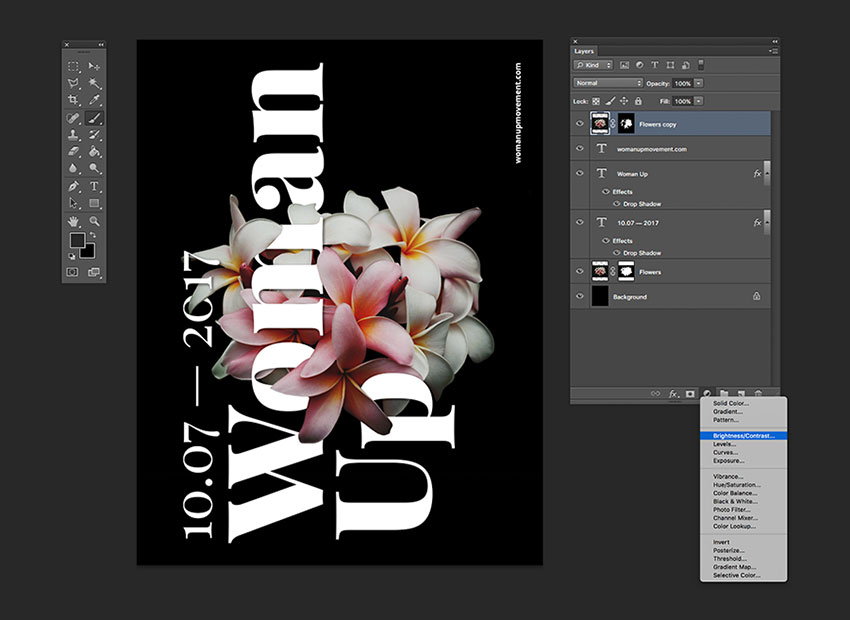
Step 2
The Properties panel for this new layer will open. We want to add more contrast and some brightness to the image to make it stand out. I added the following values; Brightness: +15 and Contrast: +20.