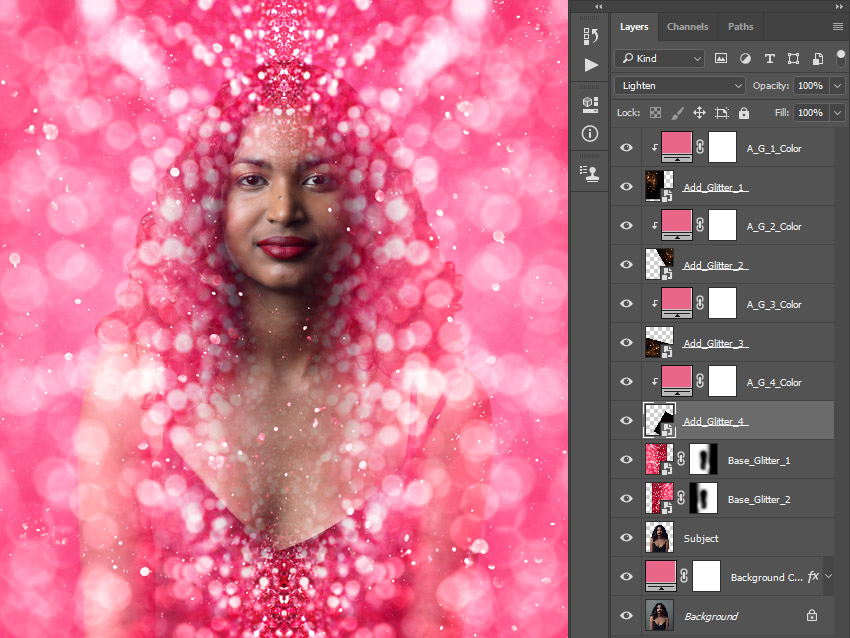
Step 12
Now press Control-T on your keyboard to transform this layer, and set the Angle to -30°.
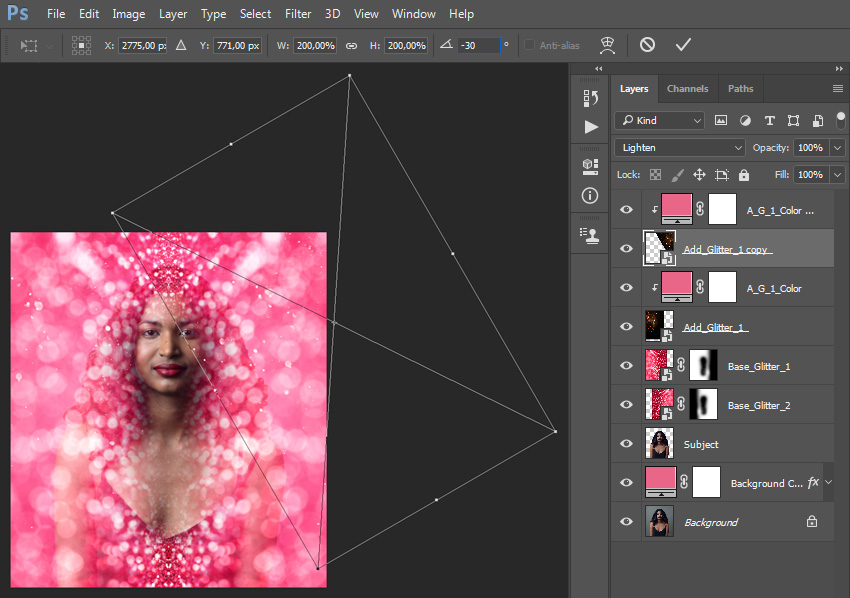
Step 13
Control-click on the A_G_1_Color copy layer to select both layers at the same time. Then, drag these layers just below the Add_Glitter_1 layer in the Layers panel. After that, name these two layers according to their sequence number.
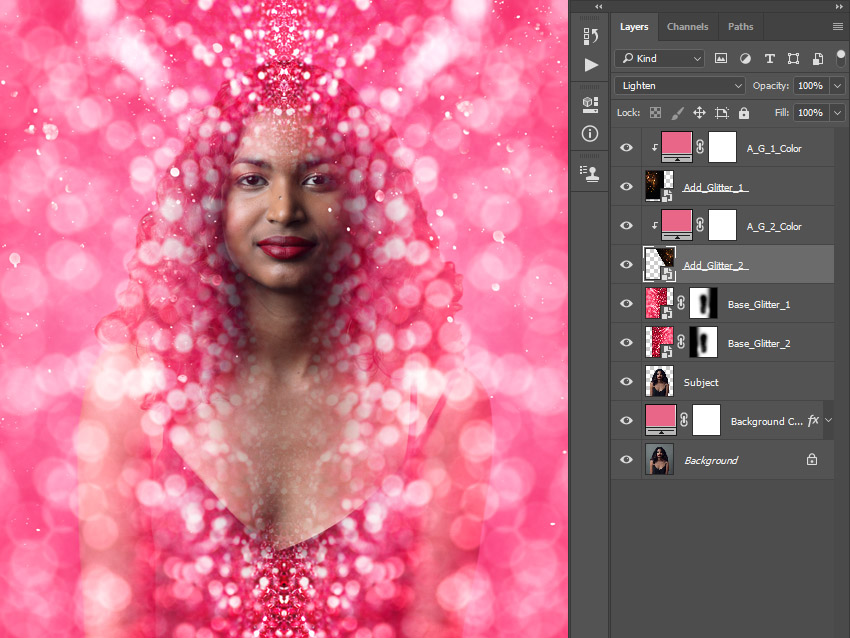
Step 14
Now repeat this process to create as many glitter layers as you want. Feel free to use different transform settings for each of the texture layers. Here is my result: