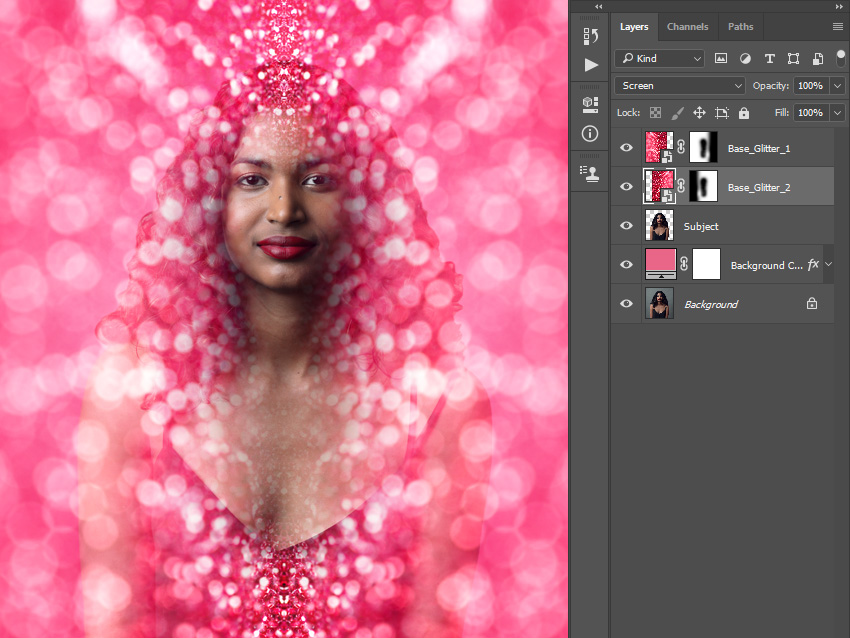
4. How to Add Glitter Textures
Step 1
In this section we are going to add glitter to photo. Select the Subject layer, go to File > Place Embedded, select the texture from the first texture link, and click Place. Then, set the Width and Height of the texture to 400% and the Angle to -90°, and name this layer Base_Glitter_1.
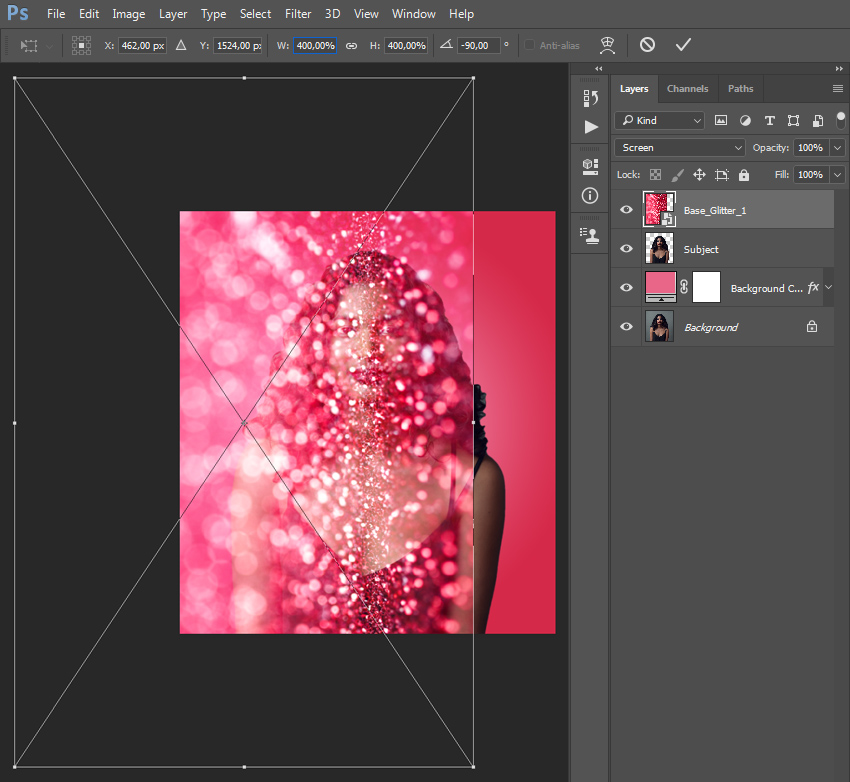
Step 2
Now change the Blending Mode of this layer to Screen.
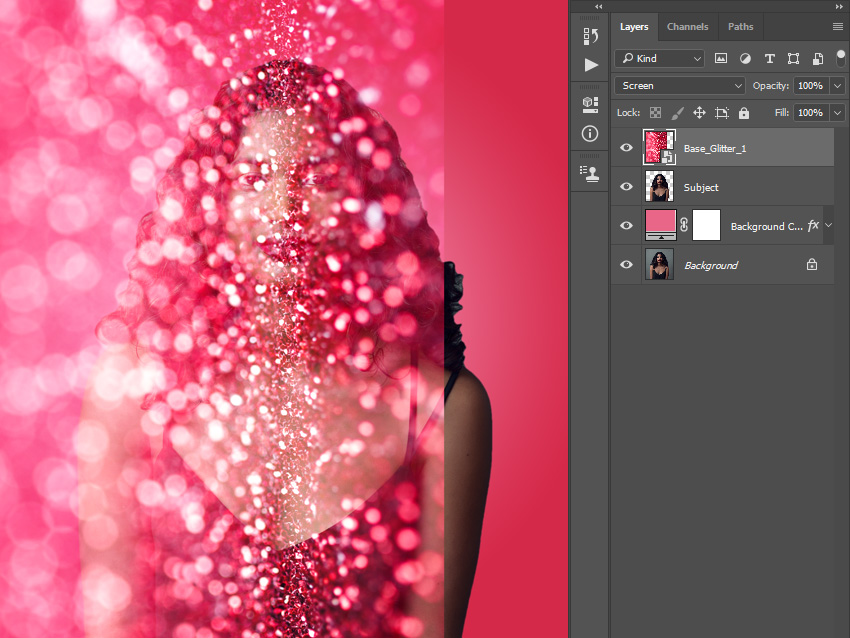
Step 3
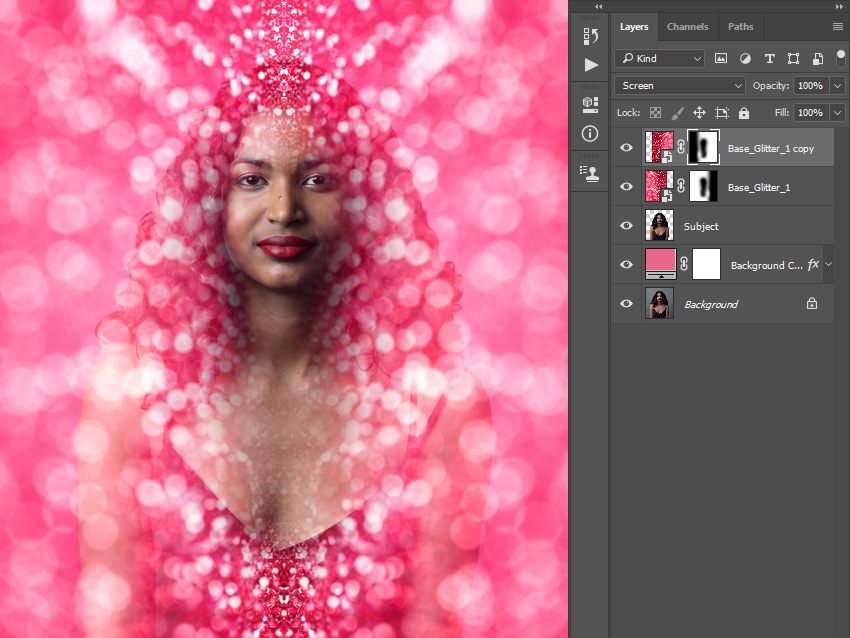
Go to Layer > Layer Mask > Reveal All to add a layer mask that reveals the whole layer. Then, set the foreground color to #000000, choose the Brush Tool (B), pick a soft brush, and brush as shown below. Feel free to use different settings for the Opacity of the brush.
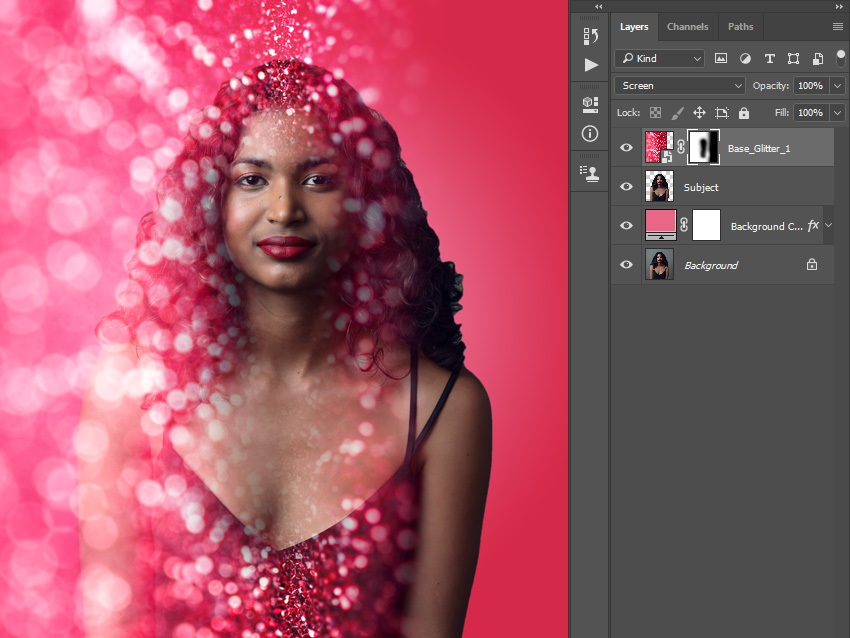
Step 4
Now press Control-J on your keyboard to duplicate this layer. Then, go to Edit > Transform > Flip Horizontal to flip this layer horizontally. After that, using the Move Tool (V), click and drag anywhere inside the canvas to position the layer as shown below.
Step 5
Name this layer Base_Glitter_2 and drag it just below the Base_Glitter_1 layer in the Layers panel.