Step 6
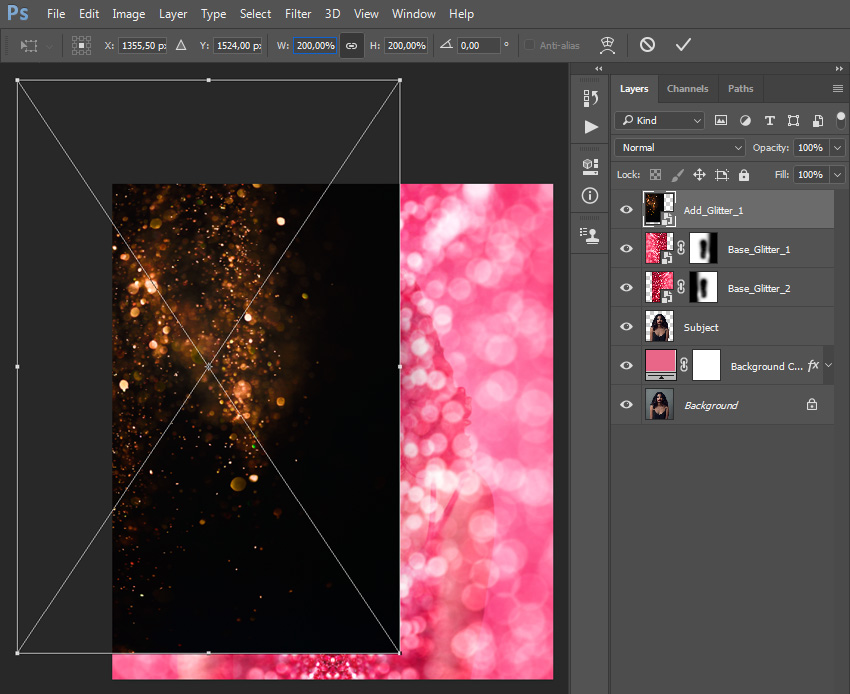
Now select the Base_Glitter_1 layer, go to File > Place Embedded, select the texture from the second texture link, and click Place. Then, set the Width and Height of the texture to 200% as shown below, and name this layer Add_Glitter_1.
Step 7
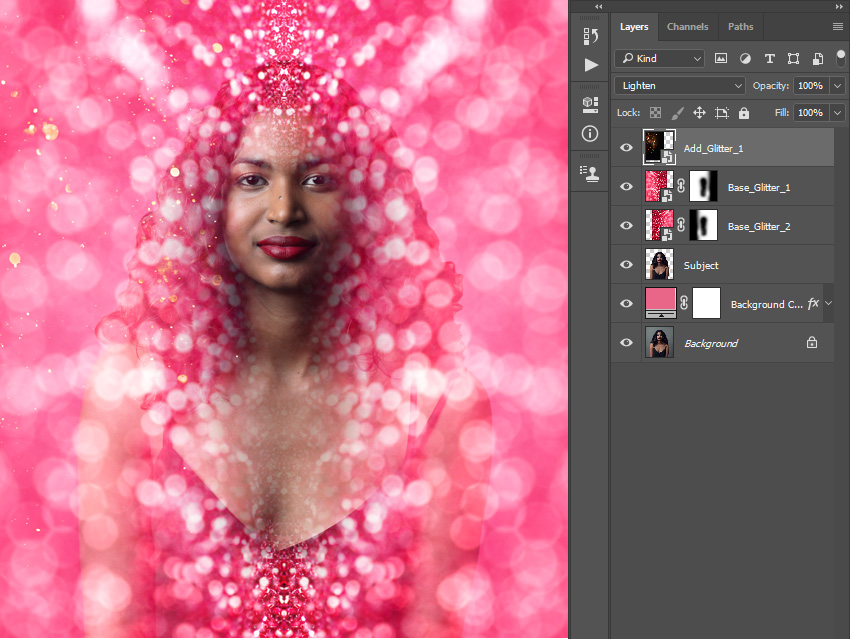
Change the Blending Mode of this layer to Lighten.
Step 8
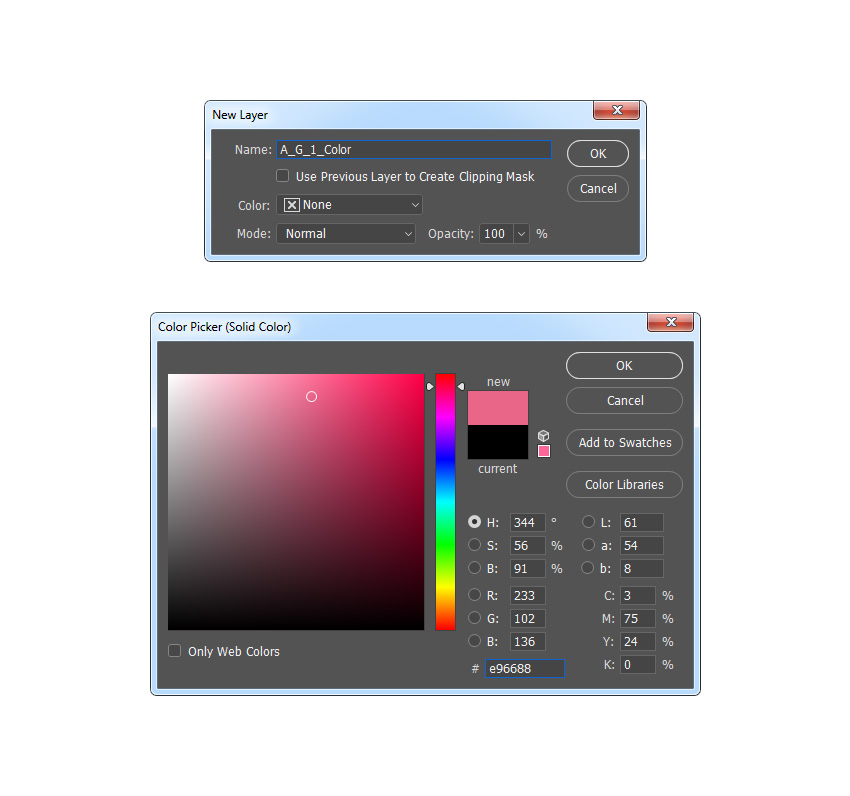
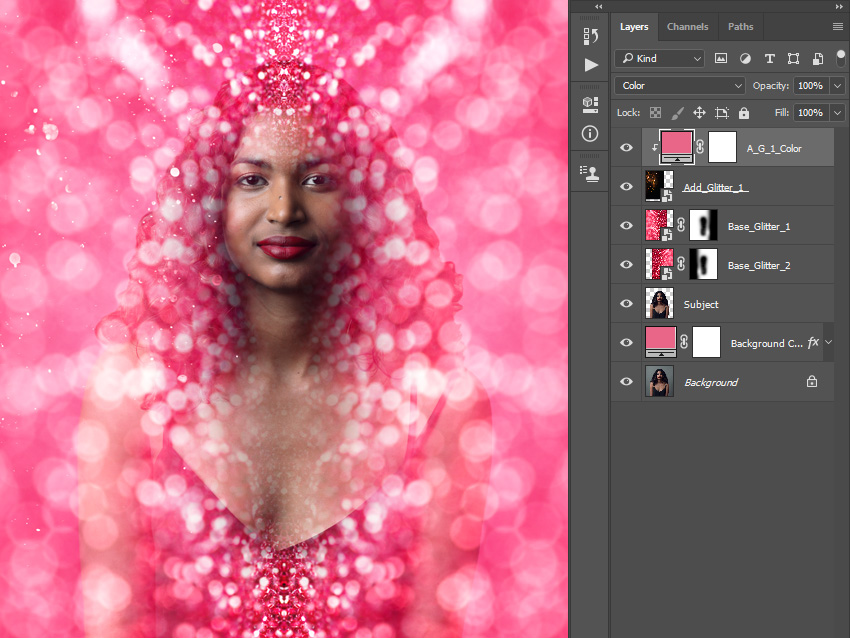
Now go to Layer > New Fill Layer > Solid Color to create a new solid color fill layer, name it A_G_1_Color, and choose the color #e96688.
Step 9
Press Control-Alt-G on your keyboard to create a clipping mask. Then, change the Blending Mode of this layer to Color.
Step 10
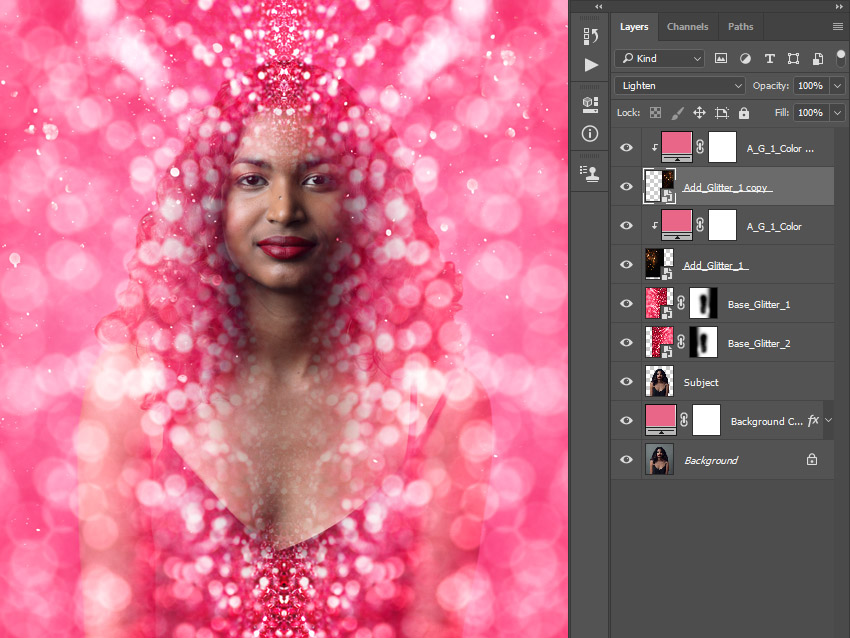
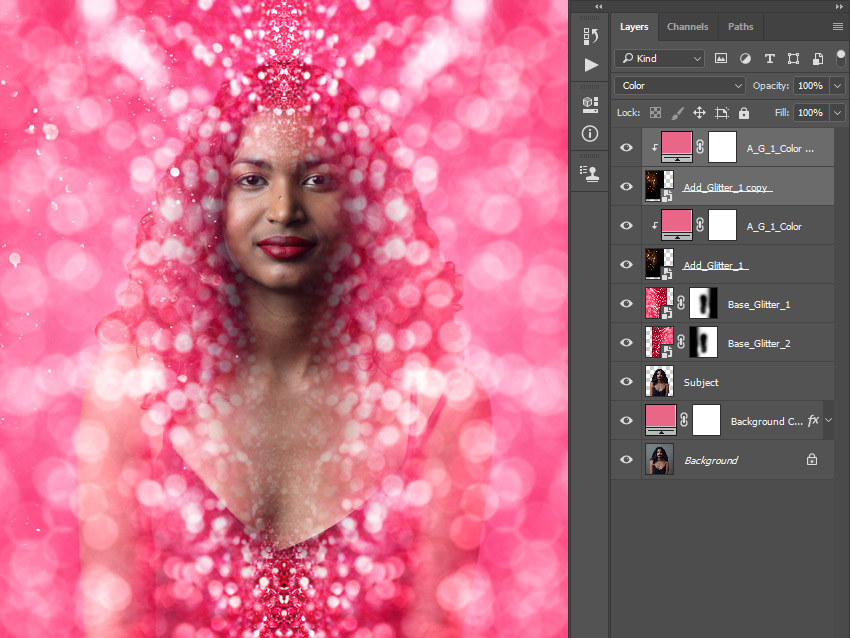
Now Control-click on the Add_Glitter_1 layer to select both layers at the same time. Then, press Control-J on your keyboard to duplicate these layers.
Step 11
Select the Add_Glitter_1_copy layer, and using the Move Tool (V), click and drag anywhere inside the canvas to position this layer as you like.