Step 3
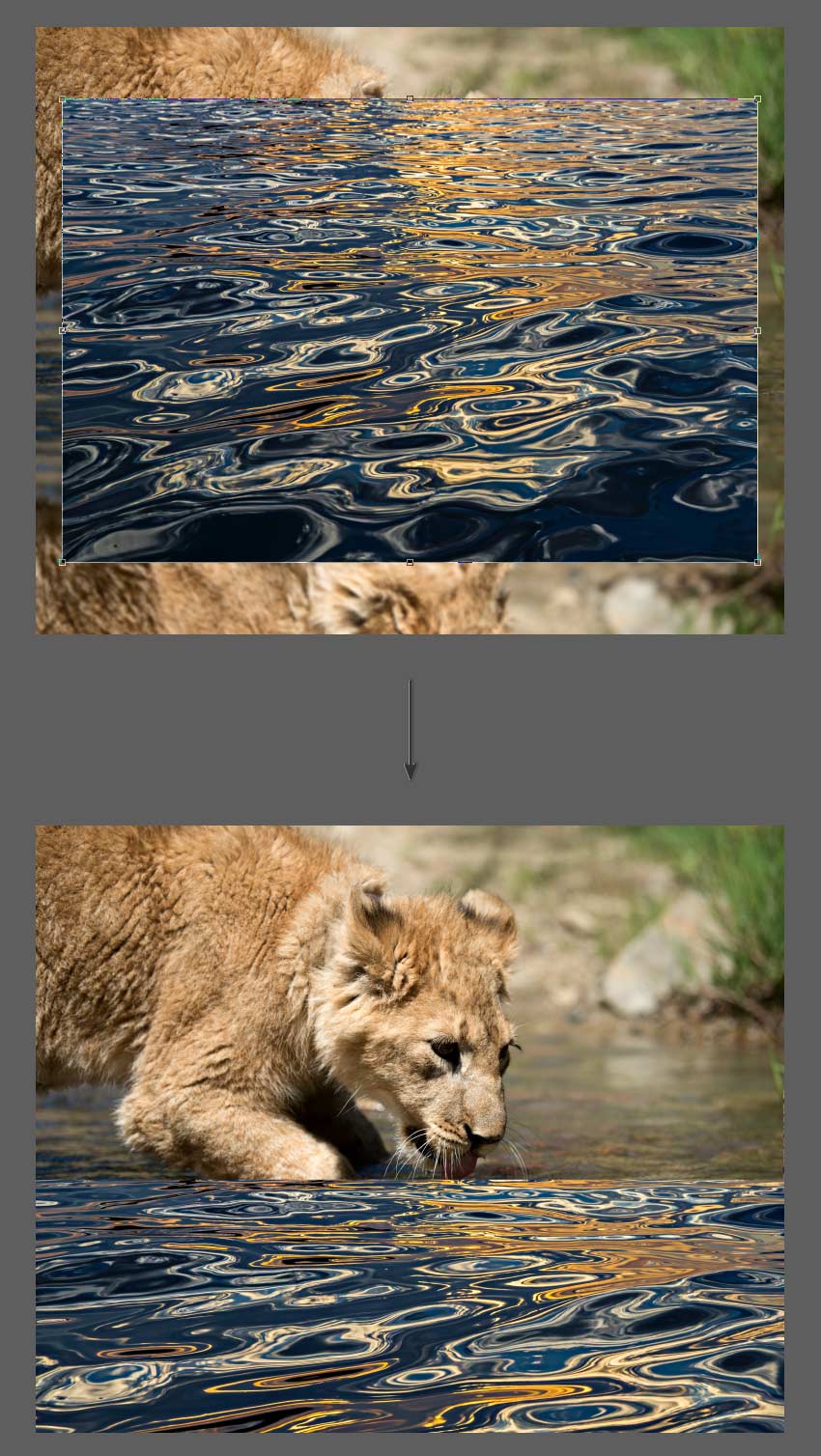
Drag and drop the water texture on top of your image to create a new layer. Then use the Free Transform Tool (Control-T) to resize the layer to fit on top of the reflection layer.
Step 4
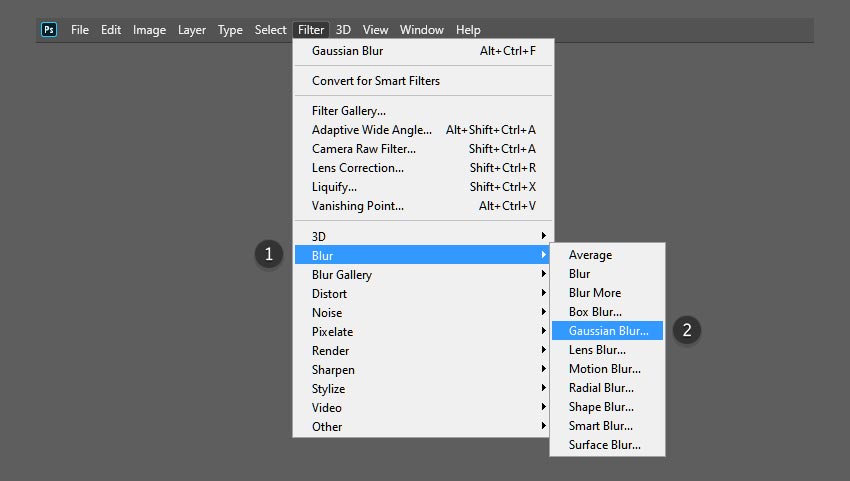
Blur the water texture as well by going to the top menu bar and selecting Filter > Blur > Gaussian Blur. Select a suitable radius value of around 2 to 5 and click OK.
Step 5
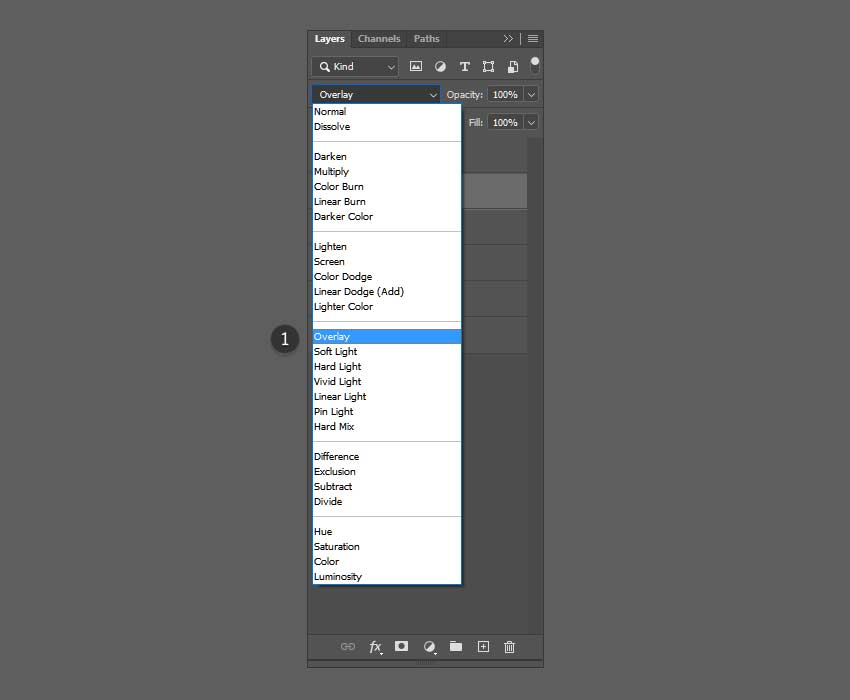
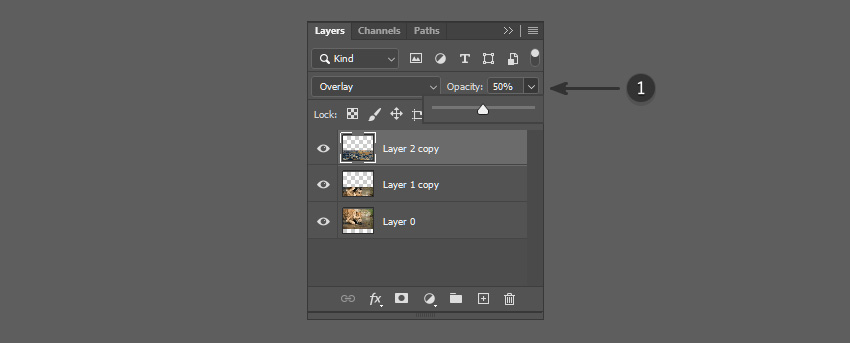
In the Layers panel, select Overlay from the dropdown menu to change the blend mode of the layer.
Step 6
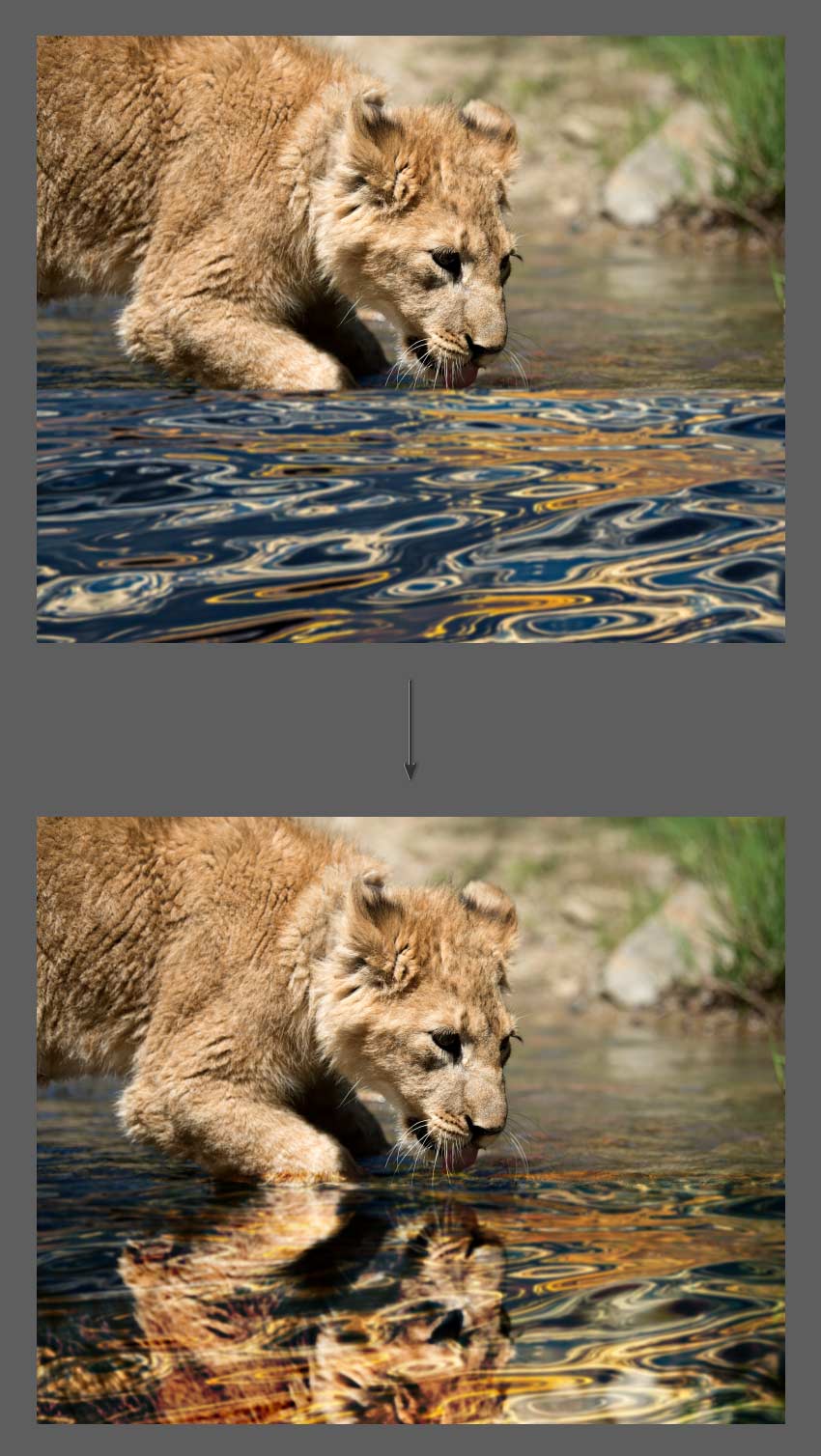
The Overlay blend mode will allow us to see through the water texture layer into the image below.
Step 7
In the Layers panel, set the Opacity of the water texture layer to 50% to reduce the contrast.
Awesome! You’re Finished!
Congratulations! You have successfully completed this tutorial on how to flip and mirror an image in Adobe Photoshop. I hope you found this tutorial helpful and that you’ve learned many new tips and tricks that you can use for your future designs. See you next time!

Digital Artist
Hi everyone! My name is Jonathan Lam and I’m a Digital Artist on a mission to empower, educate and inspire creative students just like you to gain the creative skills you desire! Currently I work for Ubisoft as a concept and game artist. My skills range from graphic design, illustration, animation, 3D modelling/sculpting, concept art and video editing. Some of the projects I’ve worked on include Hungry Shark World, Hungry Shark Evolution, Starbeard and the Kickstarter Funded Game called Eminence: Xander’s Tales. I’ve also worked with many high profile clients including Riot Games, Sony Entertainment, Hasbro and Google as a graphic designer and illustrator.