February 19, 2020 by admin
How to Create a Fall-Themed Wedding Invite in Adobe InDesign
Adjust the Fill color of the leaf to Cream*.
*If you want to set up your cards for applying metallic foiling instead, skip forward to Step 3 below.

Step 2
Copy and Paste the cream leaf, rotating it and making it smaller. Position it to the bottom-right of the first leaf.

Build up other pasted leaf vectors in a sort of criss-cross pattern across the top of the invite…
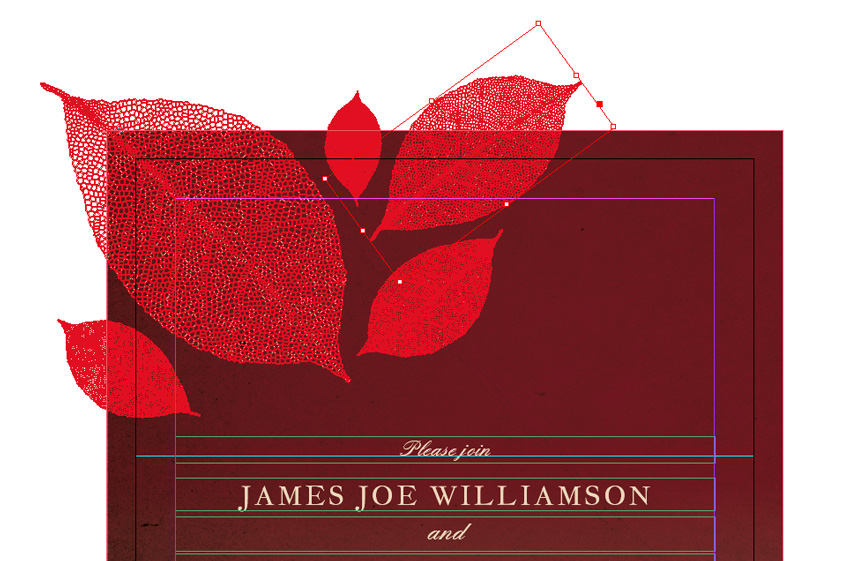
…until the top of the card is filled with falling leaves.
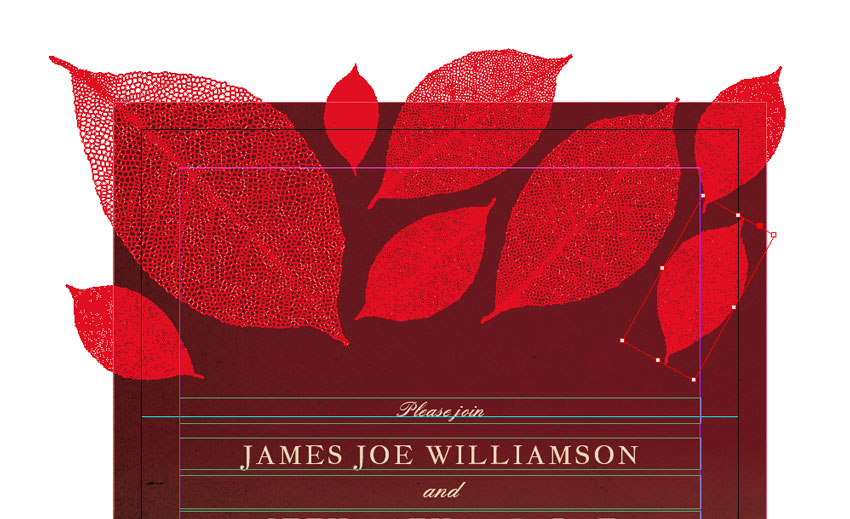
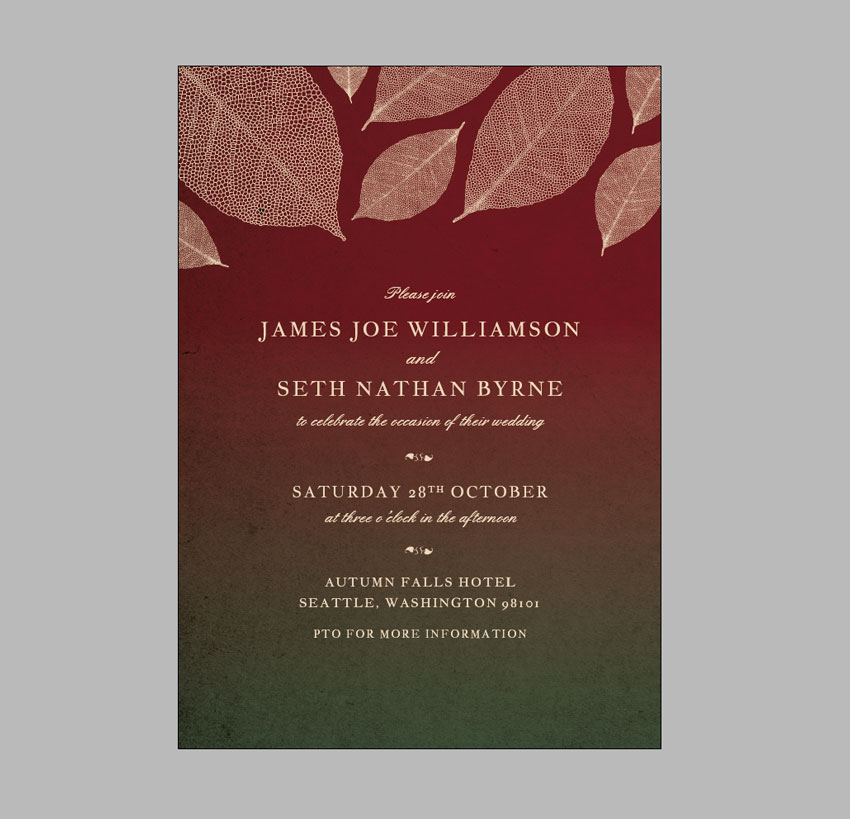
Your invitation design is finished—great job! You can skip ahead to Section 5 below to find out how to export your design. However, if you want to add an extra touch of luxury to your cards, you may want to consider setting the leaves, text or both in metallic foil once printed. Here’s how…
Step 3
To do this, first identify which layer or layers you want to apply the foil design too. Let’s say you want to apply the foil to the leaves in the design, for example.
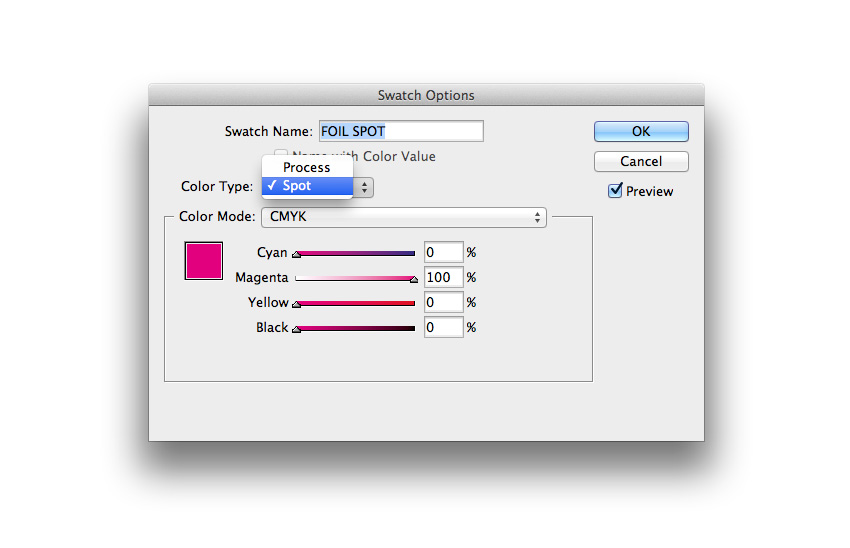
Unlock the layer, and then create a new swatch from the Swatches panel. Name the swatch FOIL SPOT, and set the Type to Spot. Set the levels below to 100% Magenta.
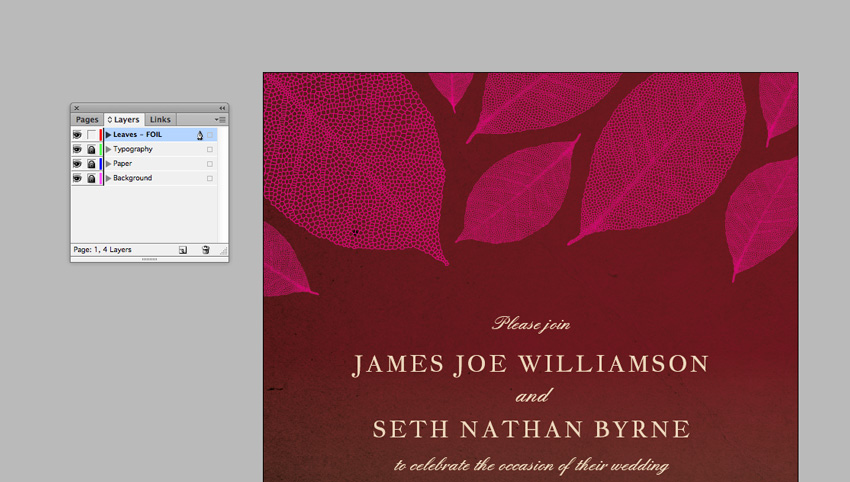
Apply this FOIL SPOT swatch to the elements you want to be pulled out in foil.
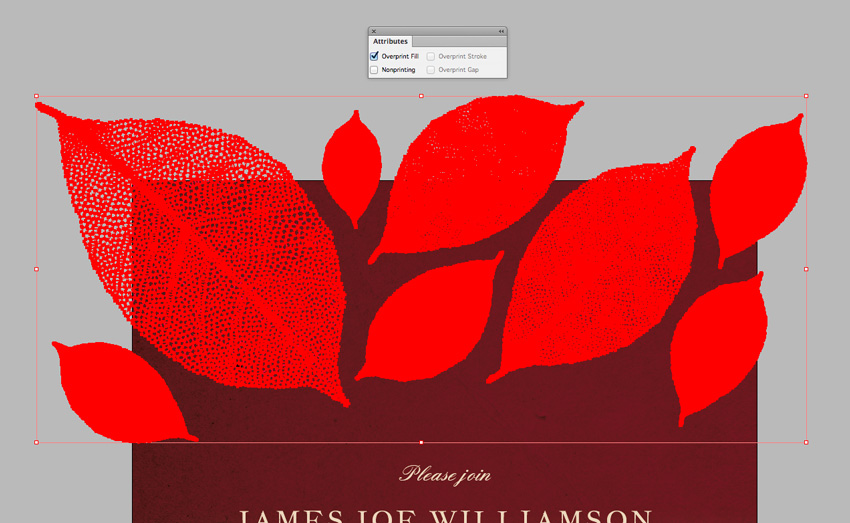
Then select all the foil elements and go to Window > Output > Attributes. Check the Overprint Fill box and/or Overprint Stroke.
And you’re done!
5. How to Export Your Invitation for Printing
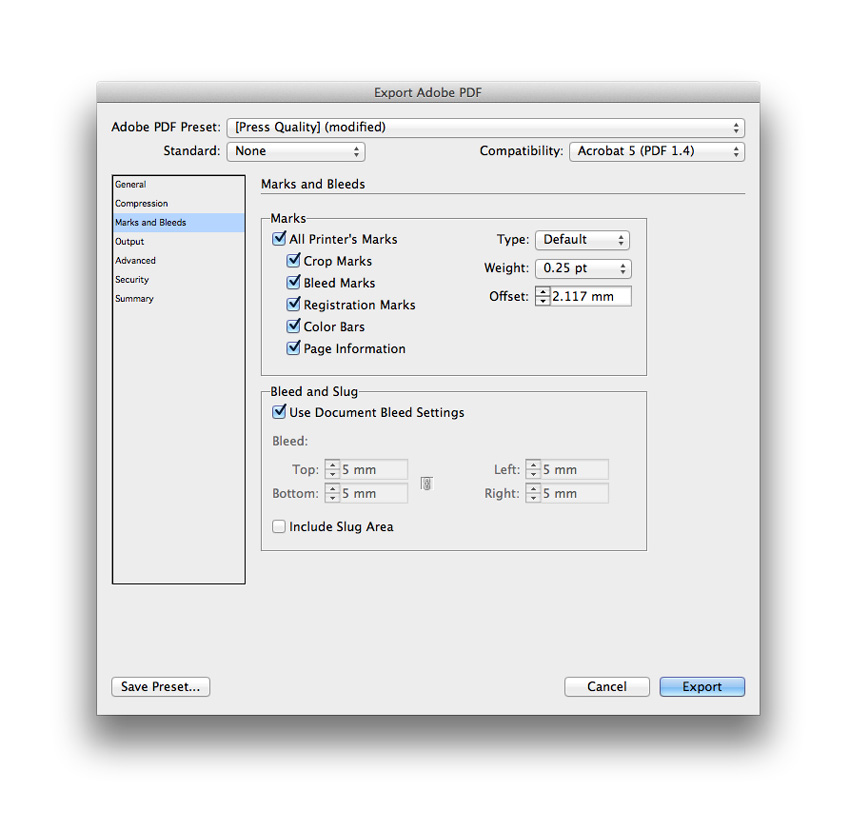
Head up to File > Export, and choose Adobe PDF (Print) from the Format drop-down menu at the bottom of the Export window. Click Save.
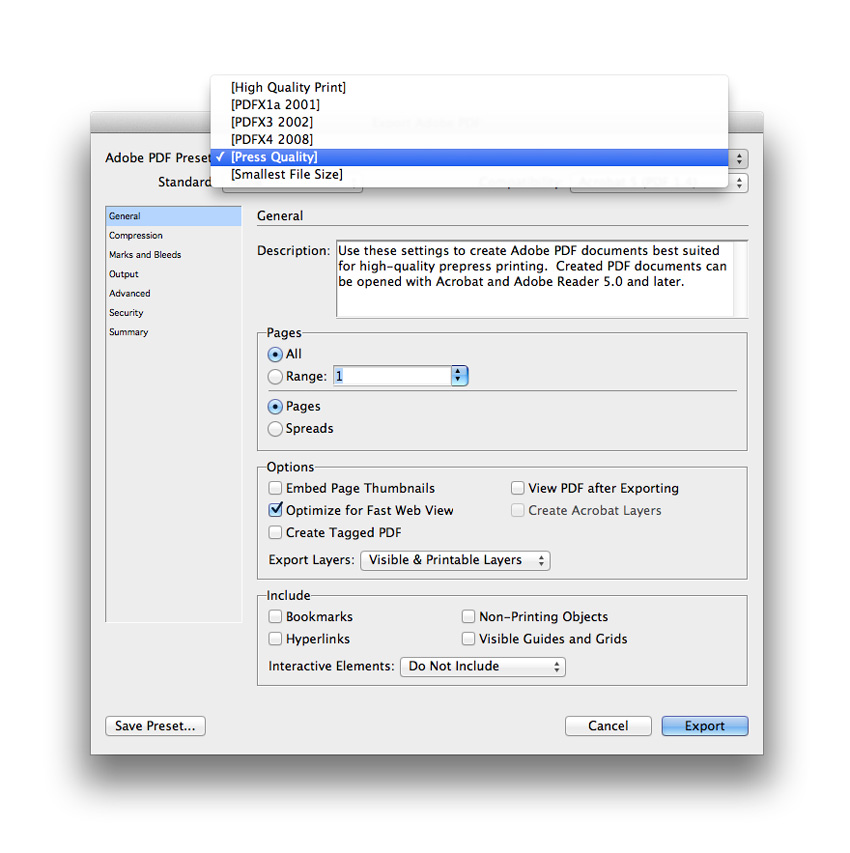
In the window that opens, choose Press Quality from the Preset menu at the top.
Then click on Marks and Bleeds in the window’s left-hand menu. Check All Printer’s Marks and Use Document Bleed Settings, before clicking Export.
You can send your exported PDF straight off to the printers—awesome work!
Conclusion: Your Finished Invitation
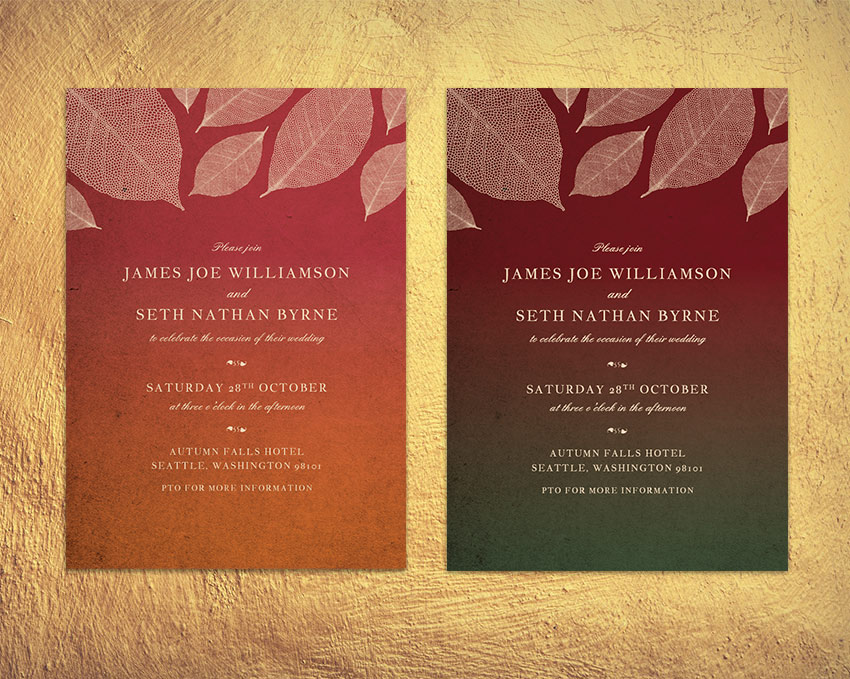
You’ve created an elegant, autumnal-themed invitation that will be perfect for fall weddings. In this tutorial we’ve covered a broad range of print design skills, including:
- How to set up an invitation template in InDesign, complete with a bleed and organized layers.
- How to create a colorful, atmospheric backdrop for the layout.
- How to format typography to an advanced level in InDesign.
- How to bring in vector graphics to your work and edit them to create a unique design.
- How to set up your design for optional foiling, and how to export your work for professional printing.