
February 8, 2023 by admin
How to Create a Botanical Wedding Invite in InDesign
4. How to Add a Botanical Touch to Your Invite
Step 1

Open up the olive wreath vector illustration in Adobe Illustrator, or other vector software of your choice.
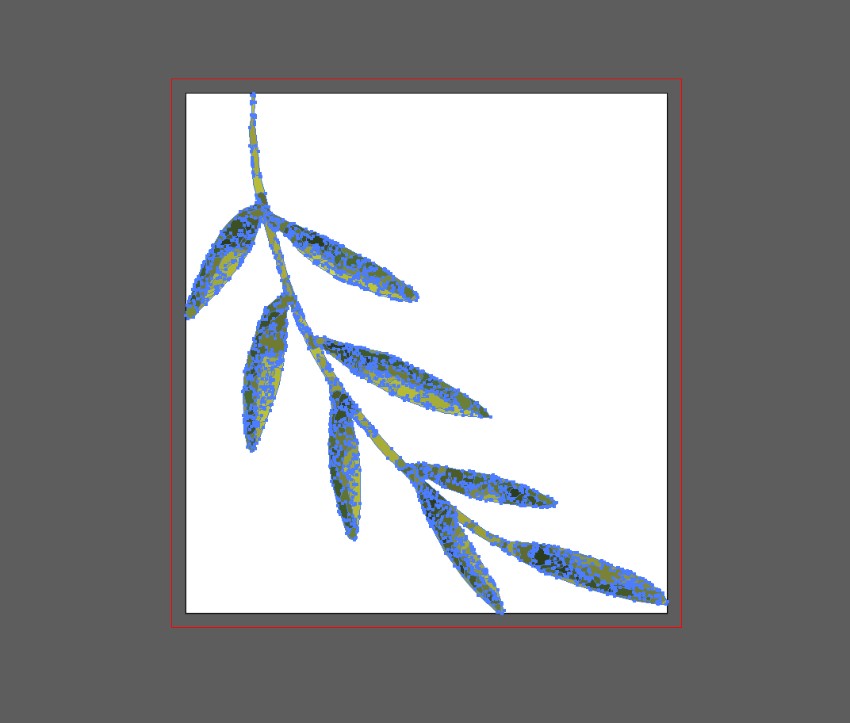
Isolate individual leaves and Copy and Paste them into new documents. File > Save As each as it’s own Illustrator or EPS file, with a transparent background.
Step 2
Head back to your InDesign document.
Lock the Type layer and unlock the Leaves layer below. Create a small image frame using the Rectangle Frame Tool (F), over the top-right corner of the type border.
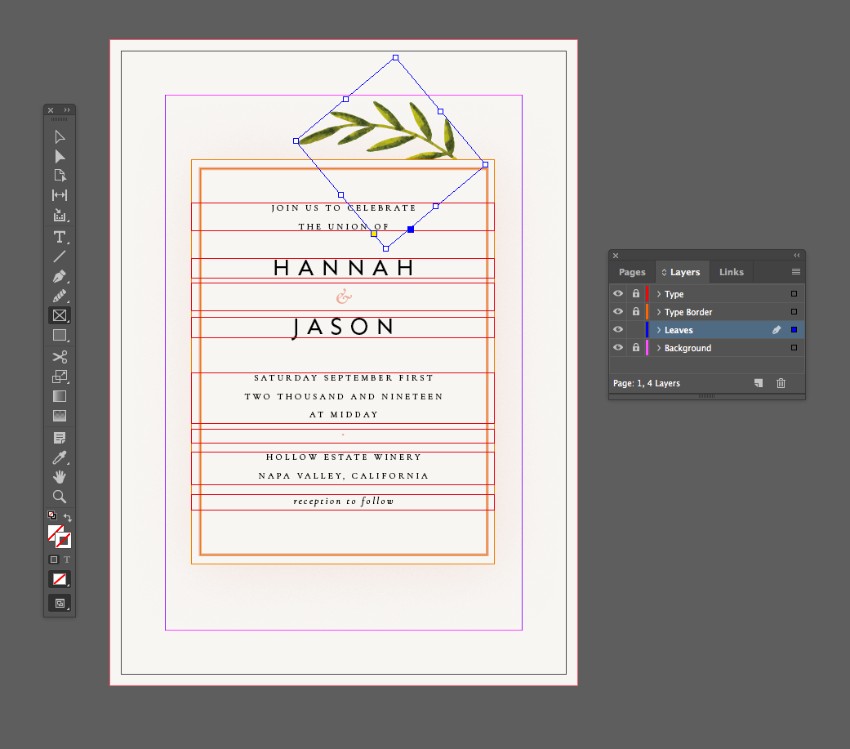
File > Place, choosing one of your individual leaf images and clicking Open. Allow it to fill the frame completely, and scale and rotate to allow it to frame the corner of the rectangle shape nicely.
Step 3
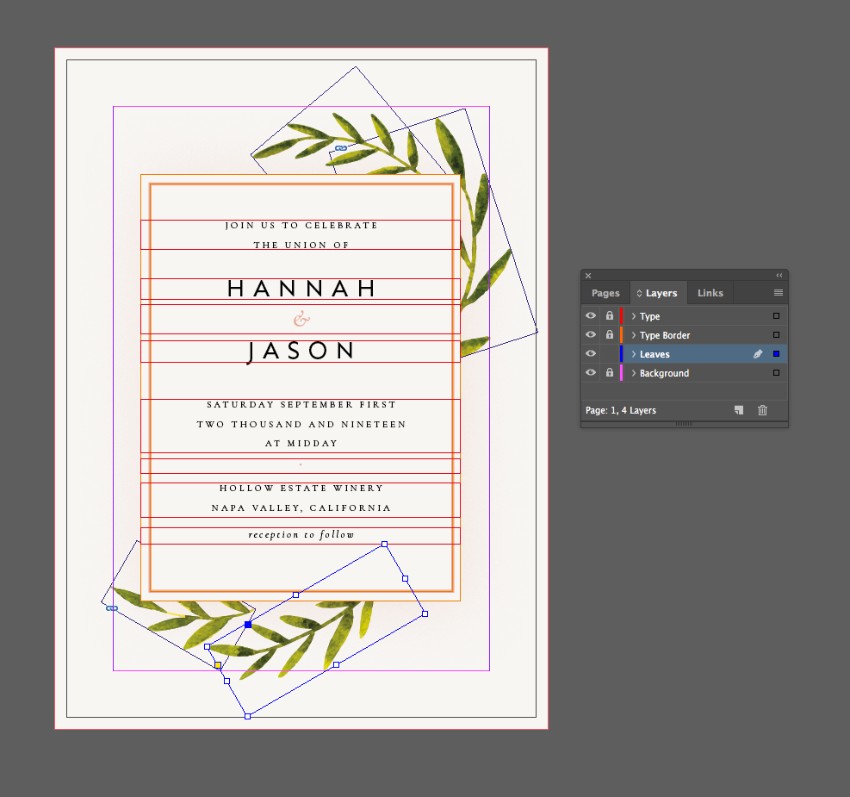
Repeat the process, creating more individual image frames over both the top-right and bottom-left corners of the type border, and placing individual leaf images into each.