
February 8, 2023 by admin
How to Create a Botanical Wedding Invite in InDesign
2. How to Build Up Color on Your Invite
Step 1
Working on the Background layer, take the Rectangle Tool (M) and drag across the page, extending the shape up to the edge of the bleed on all sides.
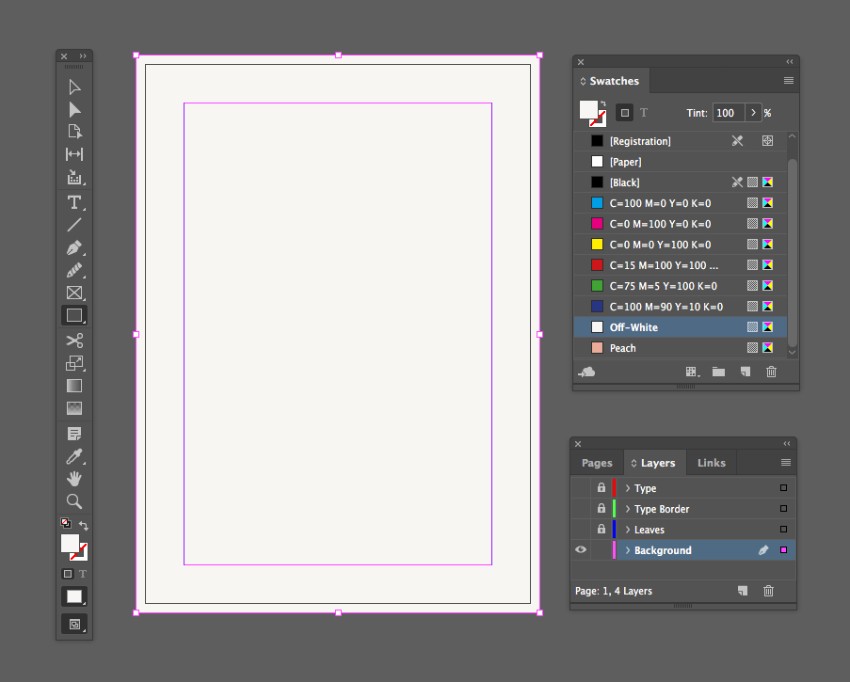
From the Swatches panel set the Fill of the shape to Off-White.
Step 2
Lock the Background layer and unlock the Type Border layer.
Use the Rectangle Tool (M) to create a second shape over the top of the first, also with an Off-White Fill.
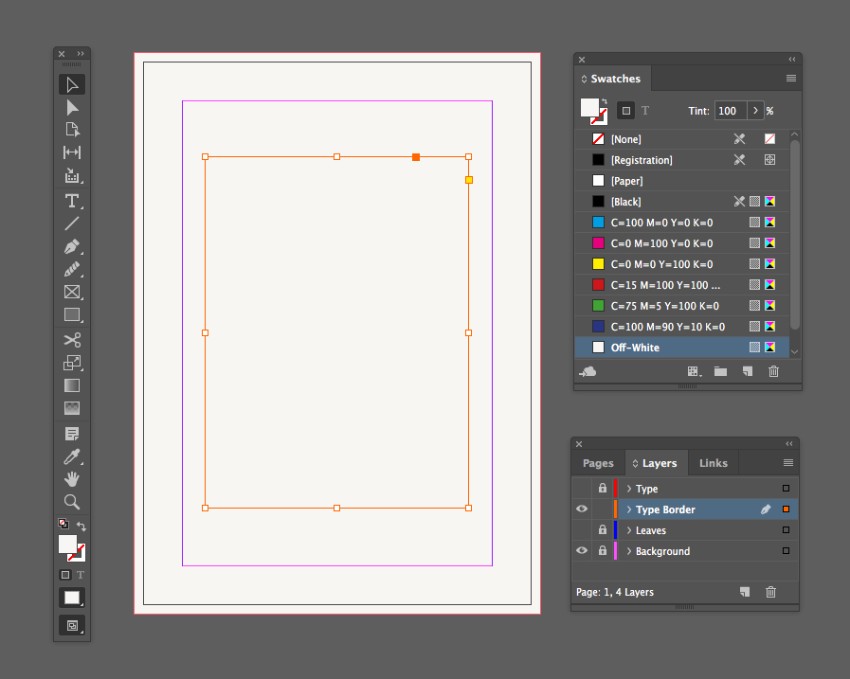
Make this shape smaller, 3.5 in in Width and 4.5 in in Height, and position centrally on the page.
Step 3
With this smaller rectangle selected, go to Object > Effects > Drop Shadow.
Click on the colored square to the right of the Mode menu, and switch the Effect Color to Peach, before clicking OK.
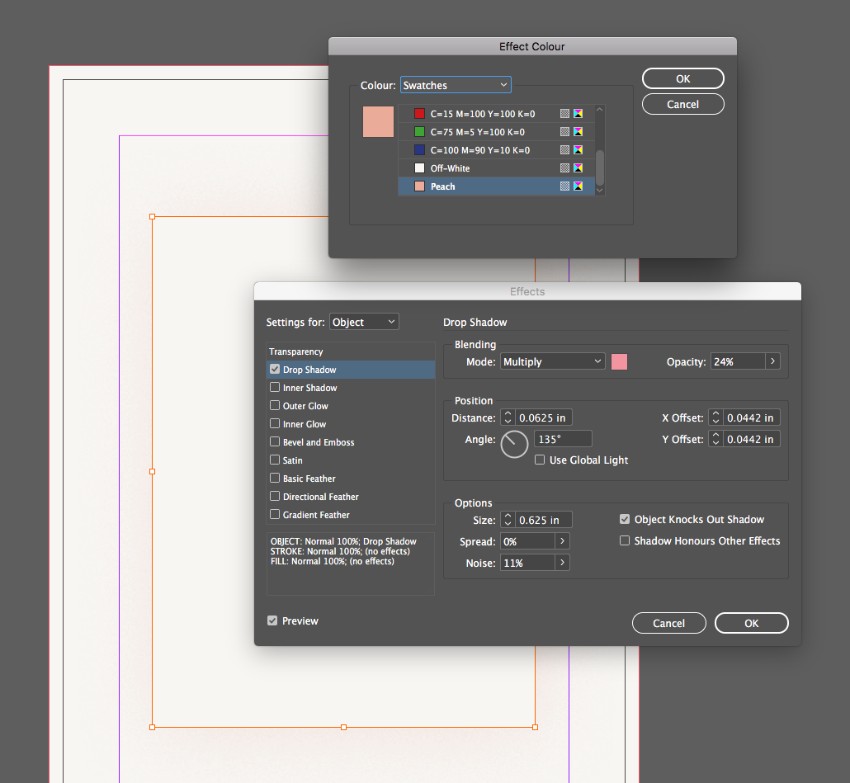
Bring the Opacity of the shadow down to around 25%, increase the Size to 0.625 in and add about 10% Noise. Then click OK to exit the window.
Step 4
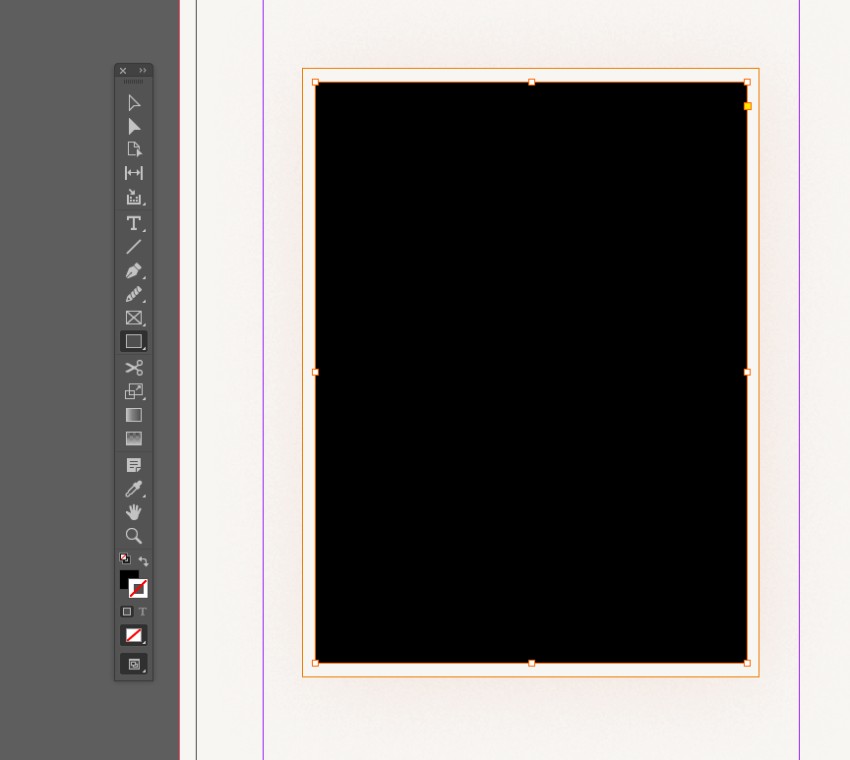
Create another rectangle shape over the top of this one, making it slightly smaller and leaving a small margin between the two.
From the Swatches panel set the Fill of this shape to [None] and the Stroke Color to Peach.
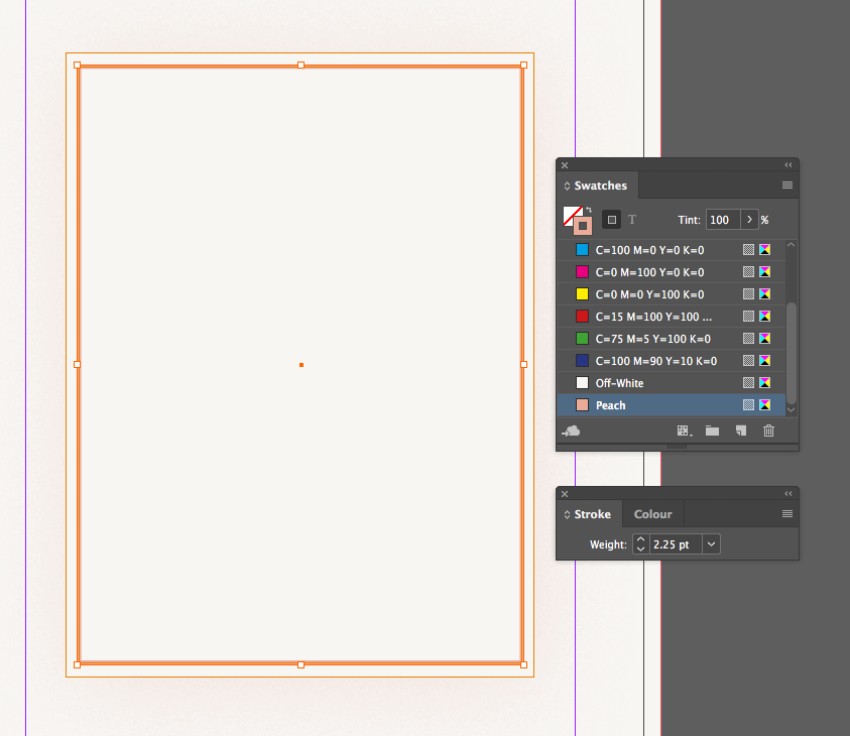
From the Stroke panel (Window > Stroke), increase the Weight of the shape’s edge to 2.25 pt.