
February 8, 2023 by admin
How to Create a Botanical Wedding Invite in InDesign
1. How to Set Up Your Invite Document in InDesign
Step 1
Open InDesign and click on Create New (or go to File > New > Document).
Click on Print at the top of the New Document window. Switch the Units to Inches, and set the Width of the page to 5 in and Height to 7 in.
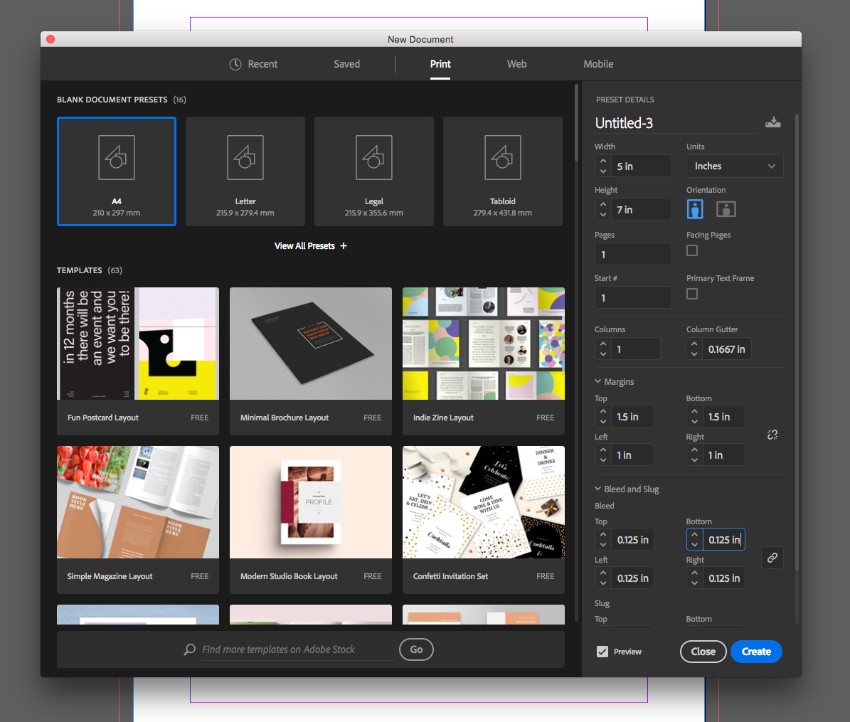
Add a Bleed of 0.125 in, and click Create.
Step 2
Expand the Layers panel (Window > Layers) and double-click on the Layer 1 name. Rename it as Background and click OK
Choose New Layer from the panel’s top-right drop-down menu. Name this layer Leaves and click OK. Create two more layers—first, Type Border, and, finally, Type at the top of the sequence.
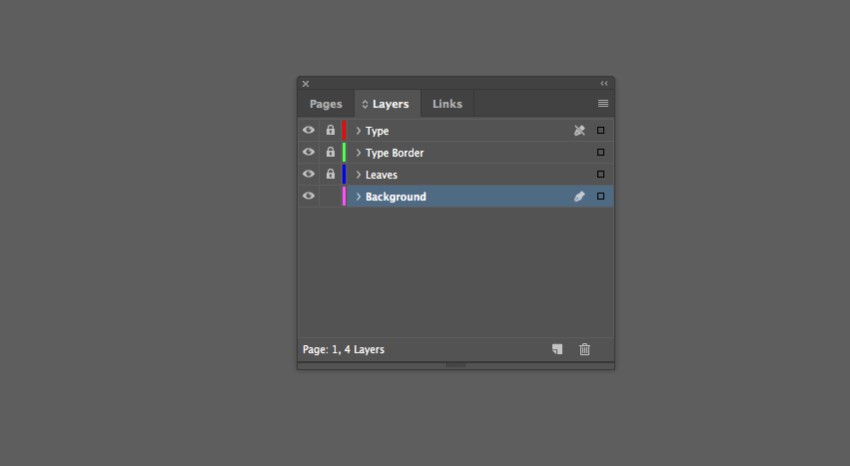
Lock all layers except Background, which we’ll work on first.
Step 3
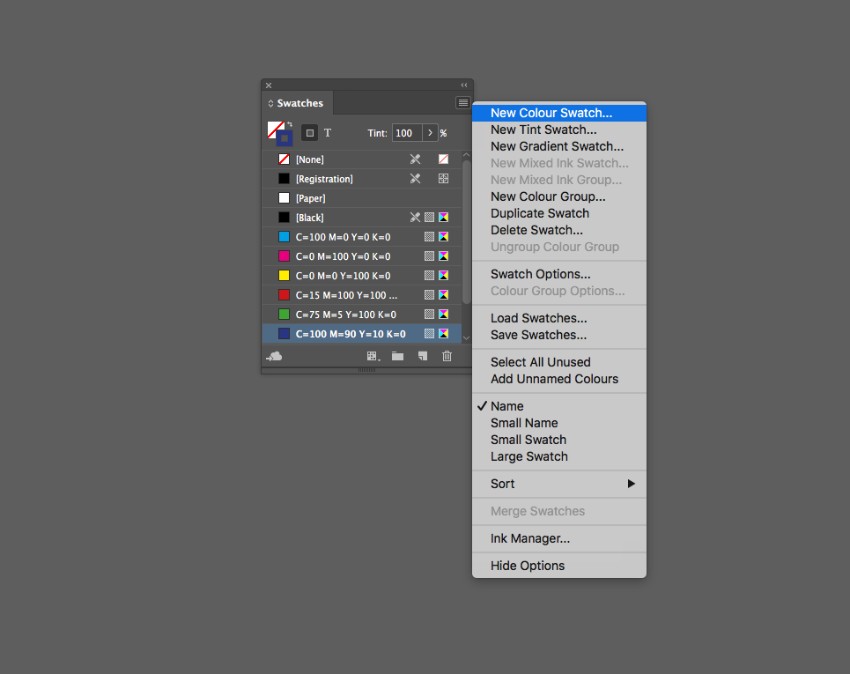
Expand the Swatches panel (Window > Color > Swatches) and choose New Color Swatch from the panel’s menu.
Choose New Color Swatch from the panel’s menu. Name the swatch Off-White, and with the Type set to Process and Mode to CMYK, set the levels below to C=4 M=3 Y=5 K=0. Then click Add and Done.
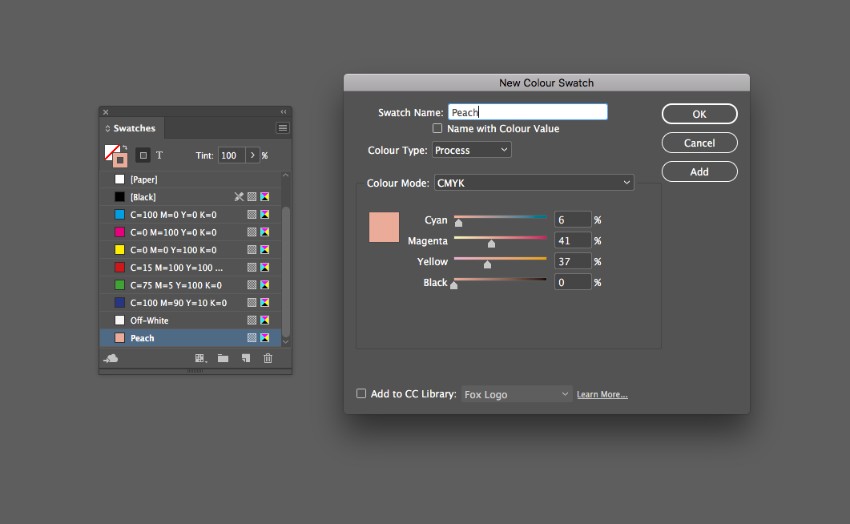
Create a second new swatch, naming it Peach and setting the levels to C=6 M=41 Y=37 K=0.